
Framer Chat Widget for WhatsApp and Other Messengers
This Framer chat widget is a floating bubble in a corner of the viewport. Visitors click it, see the channels you offer and jump straight into WhatsApp, Telegram or another app. Because it overlays the whole site, the code goes into project settings.
Gather these first
- Handles for the channels you answer: WhatsApp and Viber numbers, a Facebook username for Messenger, a Telegram username, a Signal group link, a Discord invite URL.
- An ElectricBlaze login.
- A Framer plan with Custom Code. Third-party guides report it is a paid site plan feature.
Replies happen in the messaging apps, so there is no extra inbox, seat or agent dashboard to set up.
Build the Popup Chat
See the messenger bubble options for every field. Setup:
-
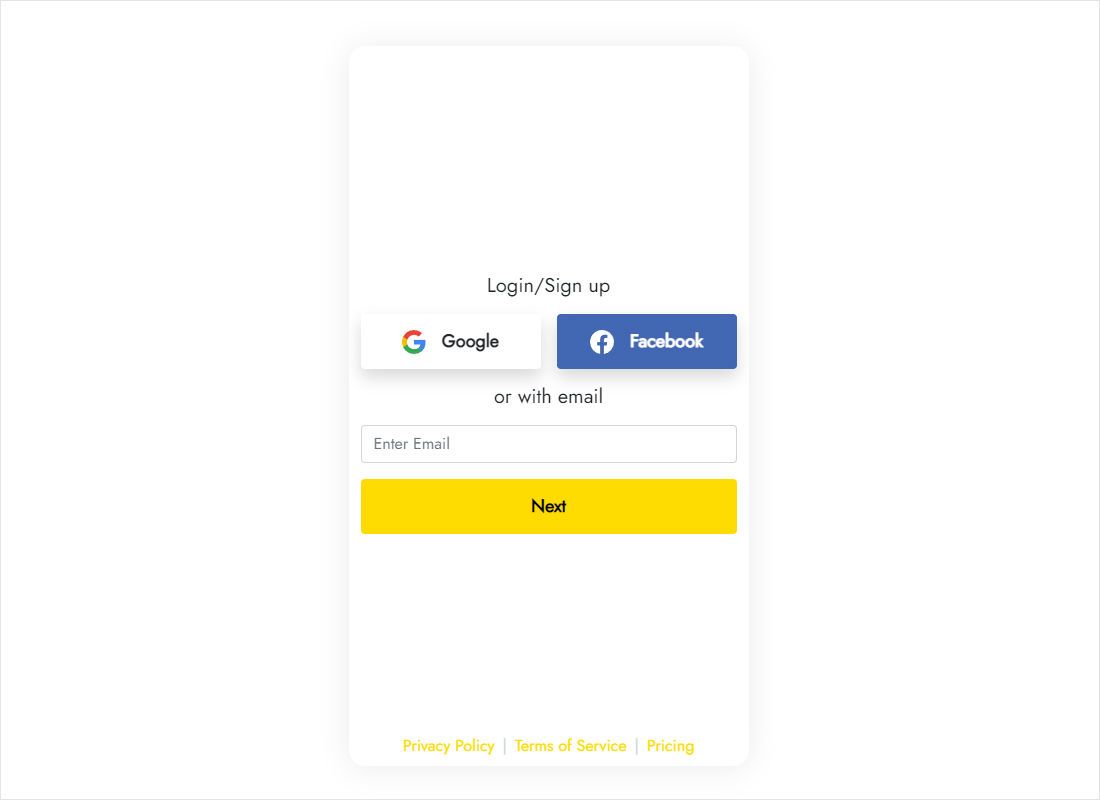
Log into a.electricblaze.com, or register before continuing.
-
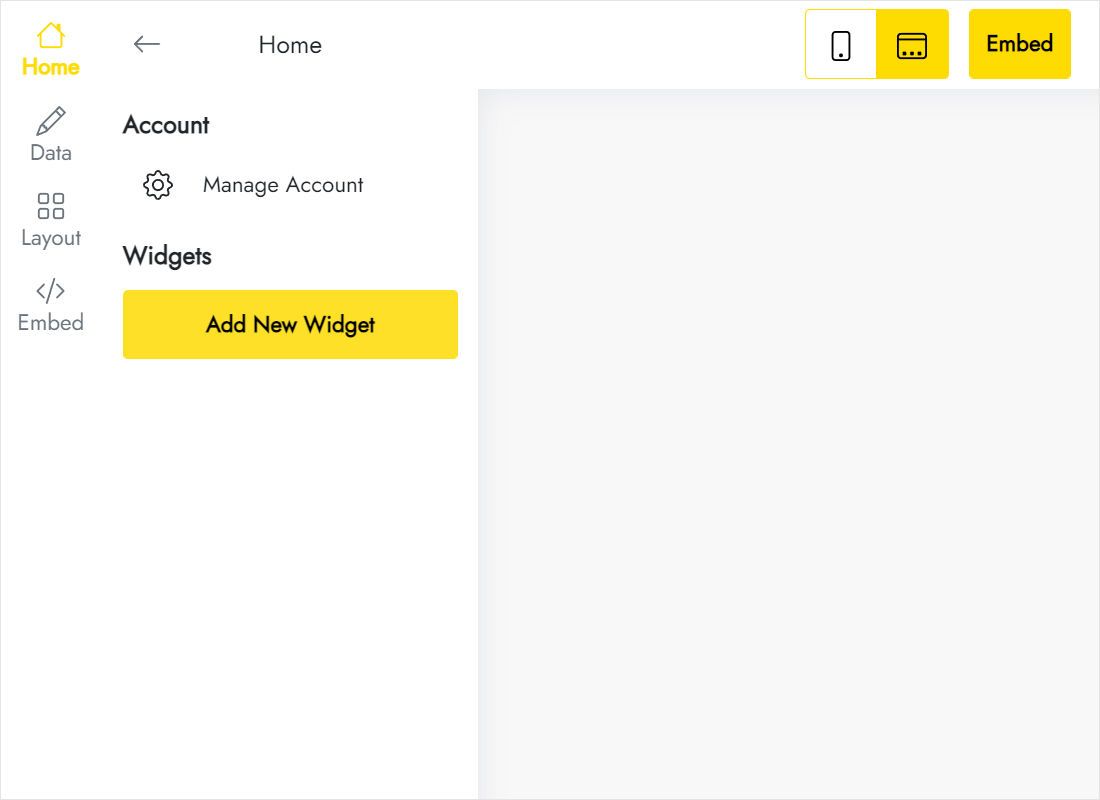
Pick Create New Widget and then Popup Chat.
-
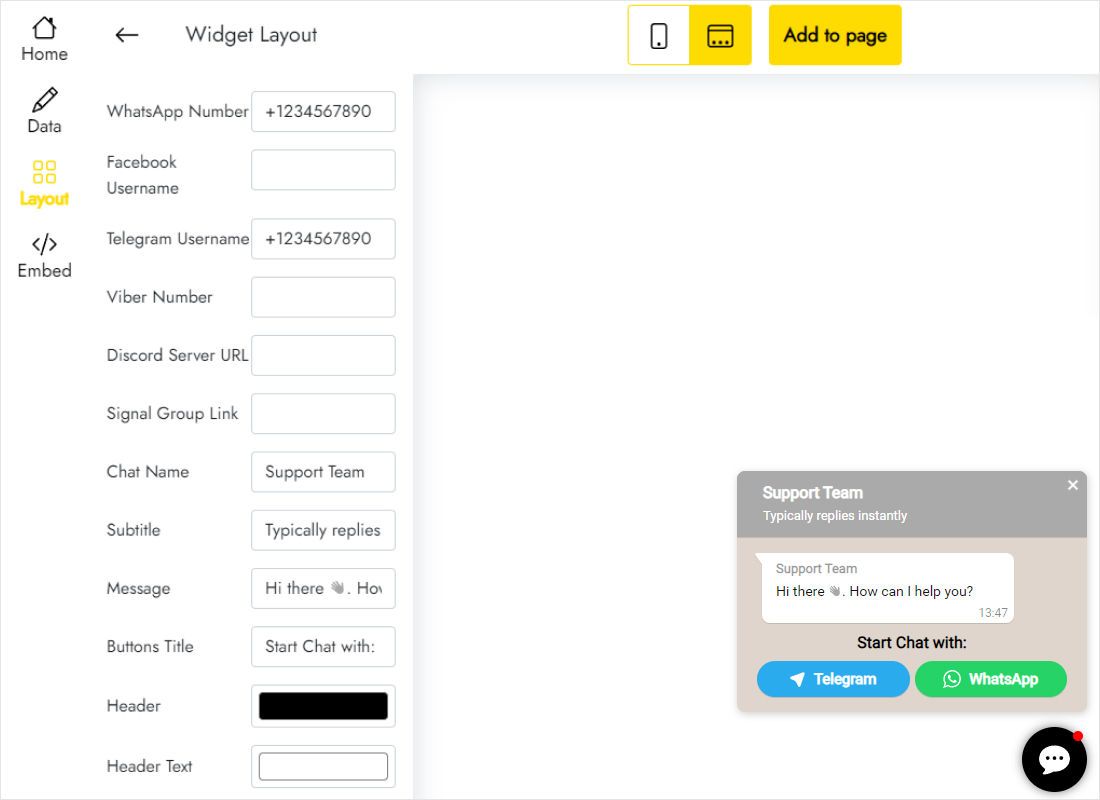
On Layout, type the numbers, usernames and links for each messenger you support.
-
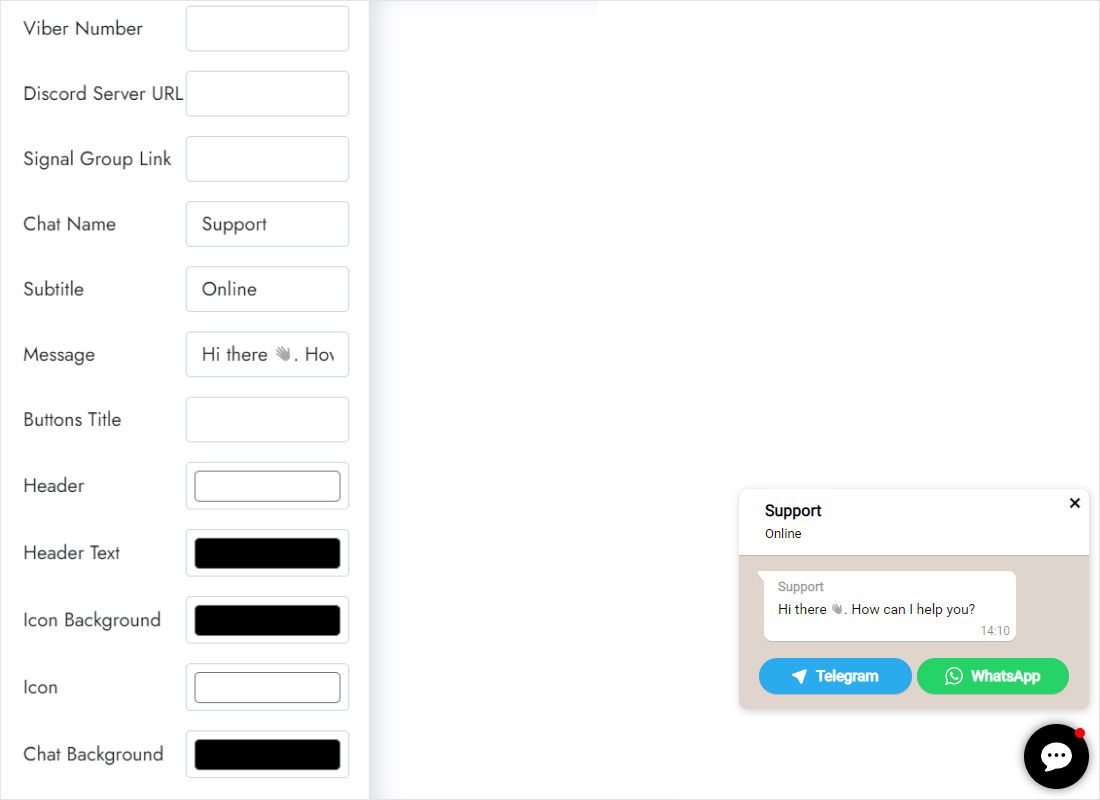
Further down, write a chat name, subtitle and greeting, and choose colours from your style guide.
-
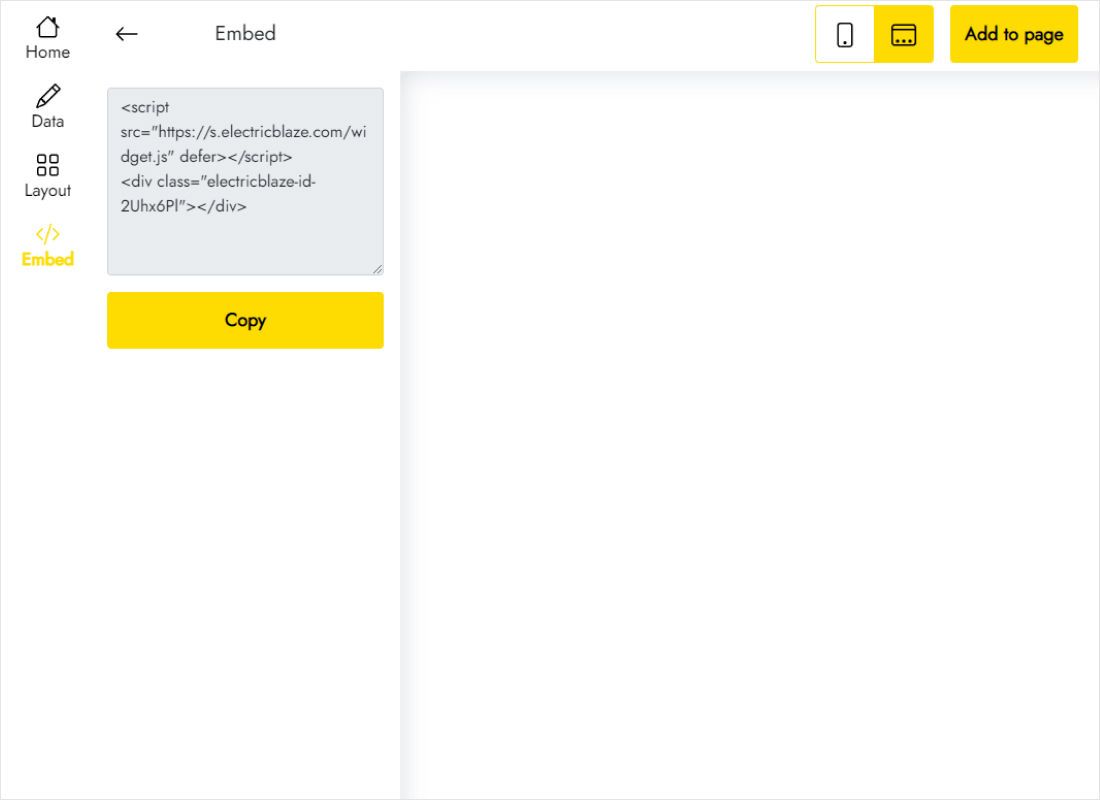
Click Add to website to reveal the snippet.
Load the chat bubble site-wide
Framer handles this in project settings, not on the canvas.
- Open Project Settings and choose the Custom Code tab.
- Click Add Script (or the + icon), name it "Chat" and paste the snippet.
- Place it at the end of the body and keep all pages selected.
- Publish, then test the bubble on a laptop and a phone.
Pasting the snippet into an Embed layer limits it to one page and can confine the bubble to that layer's box. Custom Code avoids both issues.
Positioning the bubble
- Sticky navigation and banners. Fixed layers such as a bottom cookie bar or a sticky CTA can cover the bubble. Move them, or lower their stacking order so the chat stays on top.
- Phone breakpoint. Mobile menus built as full-screen overlays should sit above the chat while open, otherwise the bubble floats over menu links.
- Corner conflicts. If a floating music bar or back-to-top button already uses the bottom right, set the chat to the other side in the widget.
- Page-specific contacts. Create separate widgets and assign each script to selected pages in Custom Code.
Before launch, open the published site in a private window on a real phone and tap every channel once. A mistyped WhatsApp number or an expired Discord invite is far easier to catch now than after a customer reports it.
Chat on Framer: FAQ
Why can't I see the Framer chat widget while editing?
Framer executes scripts only in the browser, so check the published site.
Does it collect messages in a dashboard?
No. It opens the messenger app; conversations live there.
Can I limit the bubble to the Contact page?
Yes. In Custom Code, select only that page instead of all pages.
Related reading
More instructions for this builder and the chat widget overview:
Set up your chat bubble
Add your messengers, copy the snippet, paste it into Custom Code. Start for free.
Create a widget