
Framer Music Player With Spotify and SoundCloud
A Framer music player turns a portfolio or artist page into something visitors can listen to. ElectricBlaze wraps a Spotify or SoundCloud embed into a player that either sits in your layout or floats above it.
Two modes, two places
- Embed mode. A player block you position in a stack. It goes into the Embed component on a specific page.
- Floating mode. A compact bar pinned to a corner of the viewport. It belongs in Custom Code in project settings, where one snippet covers all pages.
Third-party guides report that project-wide Custom Code requires a paid Framer site plan, so confirm that before picking floating mode. You will also need the share embed code of a Spotify or SoundCloud track, album or playlist.
Prepare the player
All controls are shown in the floating and embed player showcase. Steps:
-
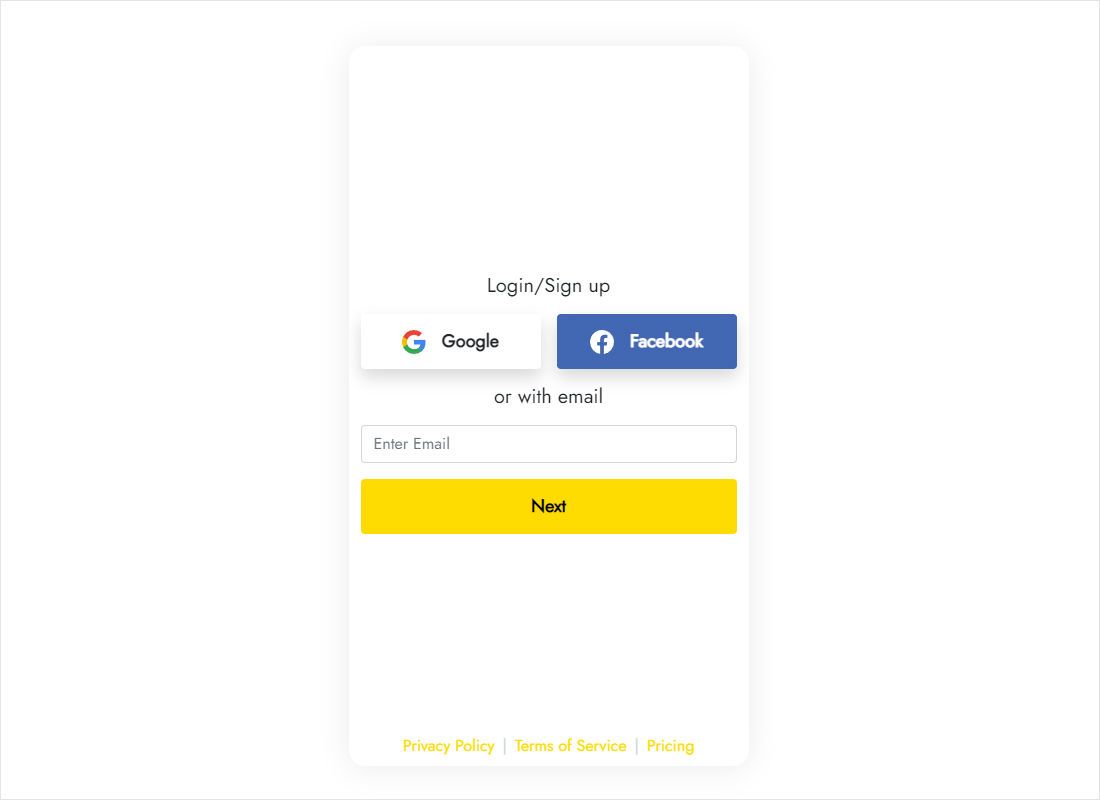
Visit a.electricblaze.com to log in, or start an account.
-
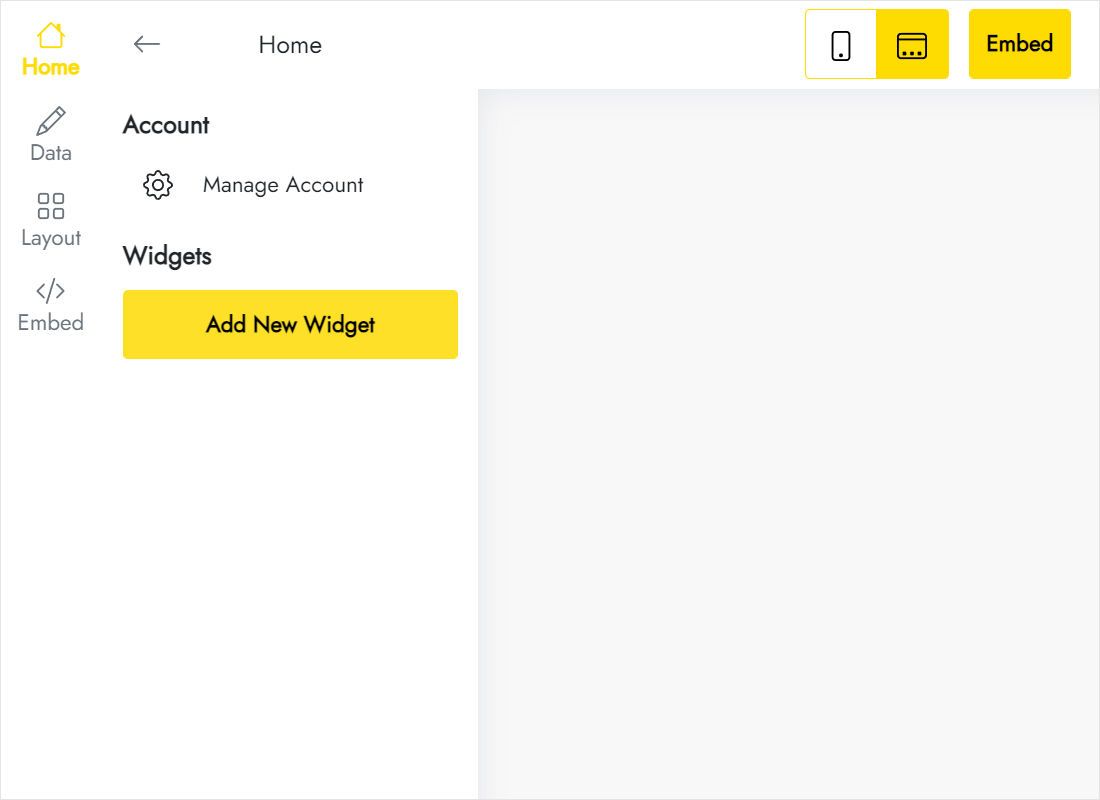
Select Create New Widget and click the Music Player card.
-
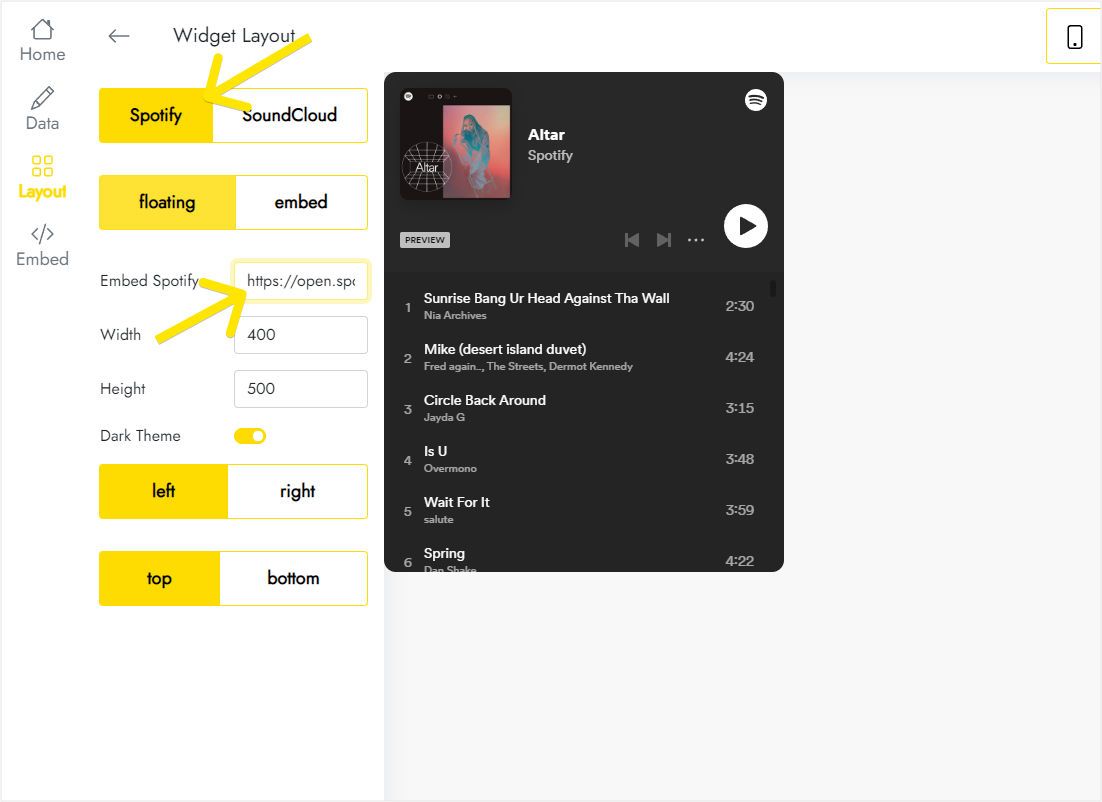
On Layout, set the provider (Spotify or SoundCloud) and paste the provider's embed code.
-
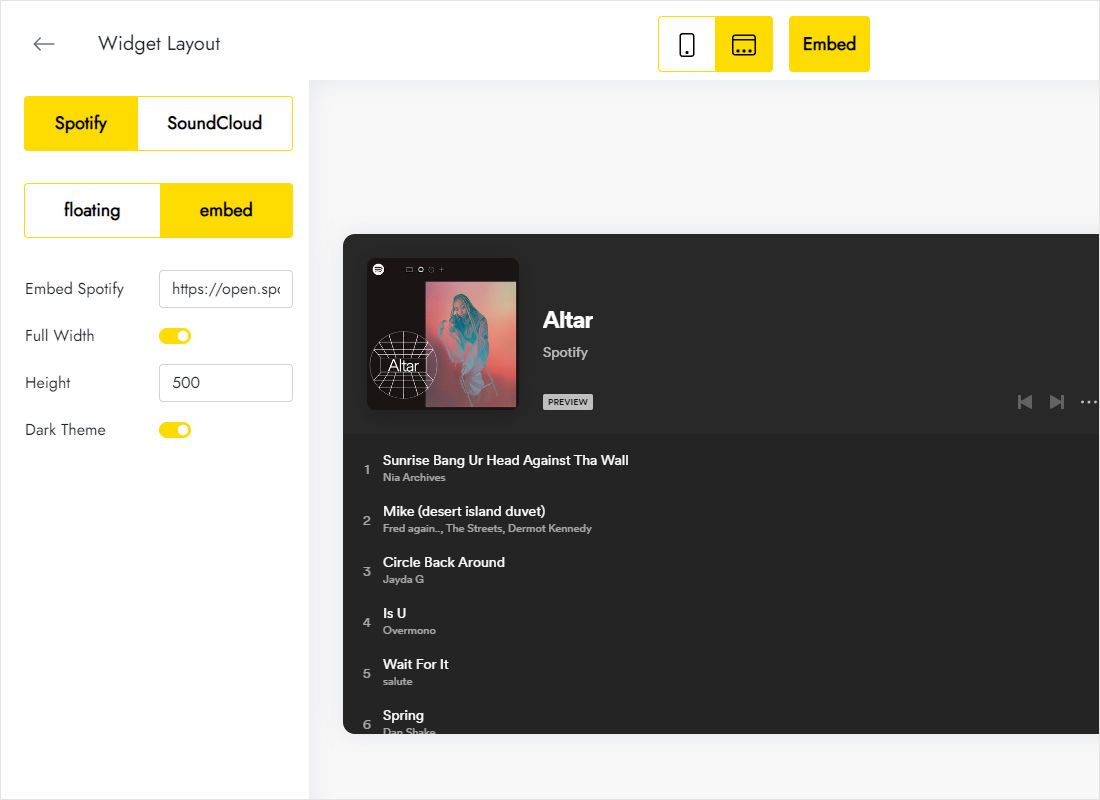
Continue on Layout: floating or embed, height in pixels and the corner for the floating bar.
-
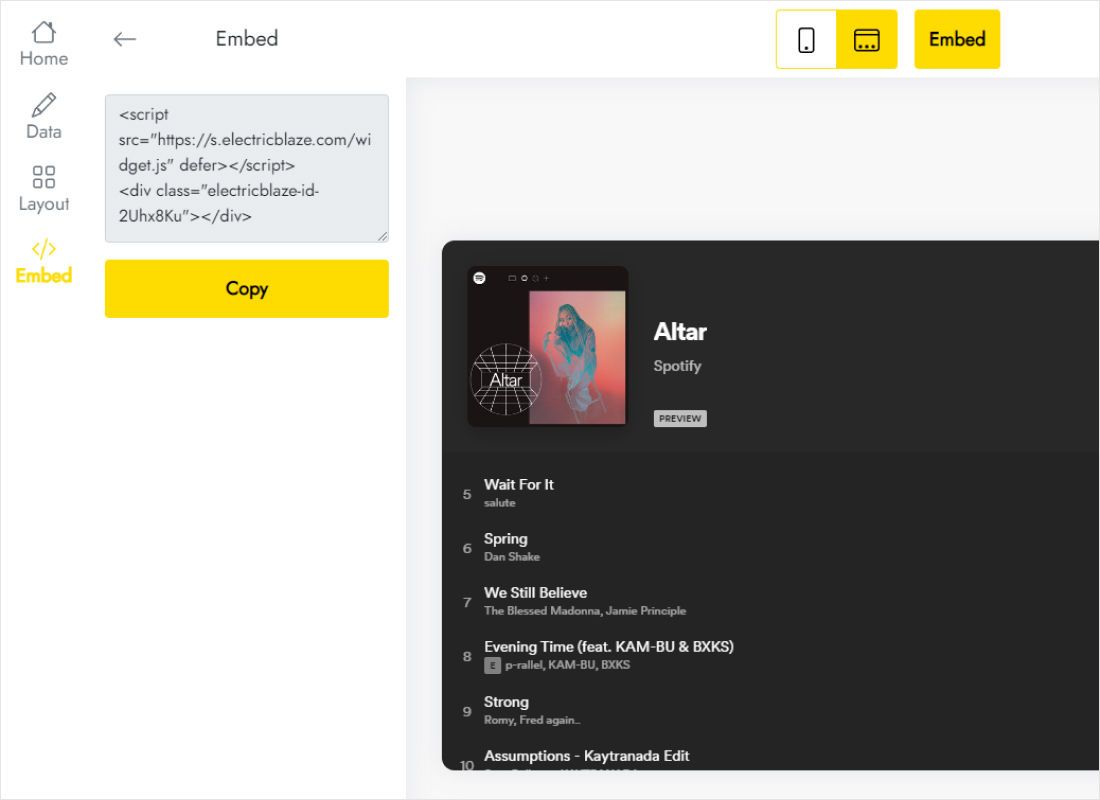
Press Add to website and take the snippet.
Place the audio player in Framer
Use the path for the mode you selected.
- Embed mode: Insert → search Embed → drop it into a stack, set type to HTML and paste the snippet.
- Embed mode: width Fill, height equal to the player height from the widget.
- Floating mode: open project settings → Custom Code, add a script, name it, place it at the end of the body and apply it to all pages.
- Publish and play a track on the live site.
A floating player placed inside an Embed layer stays tied to that layer. Use Custom Code when it should hover over every page.
Autoplay, overlap and mobile
Sound needs a click
Every major browser mutes or blocks audio until the visitor interacts. Plan the audio player Framer visitors see as click-to-play, with a label or icon that invites the first tap.
Corners are crowded
Sticky navigation, a cookie notice or a chat launcher can occupy the same spot. Choose a free corner in the widget; for sticky layers you control, lower their stacking so the bar stays reachable.
Phones
On the Phone breakpoint a tall playlist dominates the screen. Override the Embed height there and let the track list scroll inside.
Music player framer FAQ
Is there a Framer audio player component already?
Streaming a Spotify or SoundCloud playlist with styled controls is not something the built-in layers cover, so an embed such as this widget fills the gap.
Does playback continue when a visitor changes page?
Continuity between pages is not guaranteed. Test navigation on your published site before promising uninterrupted listening.
Will visitors need a Spotify account?
Spotify decides that. Signed-out listeners typically hear previews, while SoundCloud tracks usually play in full.
More for Framer
Other widget instructions for this builder and the player overview:
Build your music player
Paste a playlist embed, choose a mode, publish. Try it on the Free plan.
Create a widget