
How to Add Twitter Feed to WordPress
Short updates from X (Twitter) make a lively news column for a blog or company site. This page shows how to add Twitter feed to WordPress with an ElectricBlaze widget, whether the posts should sit in an article, a sidebar or a full-width section.
Requirements
- The username of the X (Twitter) account you want to display.
- An ElectricBlaze login. Starting out costs nothing.
- Rights to save scripts. Self-hosted installs grant them to Administrators; on WordPress.com they come with paid plans once hosting features are switched on.
Searching for a WordPress Twitter feed plugin free of charge usually turns up several options, and some work nicely. A snippet is worth considering when you would rather not add another plugin to maintain or when the same timeline should also appear on a site not built with WordPress.
Step 1: Set up the timeline in ElectricBlaze
The timeline widget rundown has the full option list. The quick version:
-

Your first stop is a.electricblaze.com: enter your credentials or register.
-
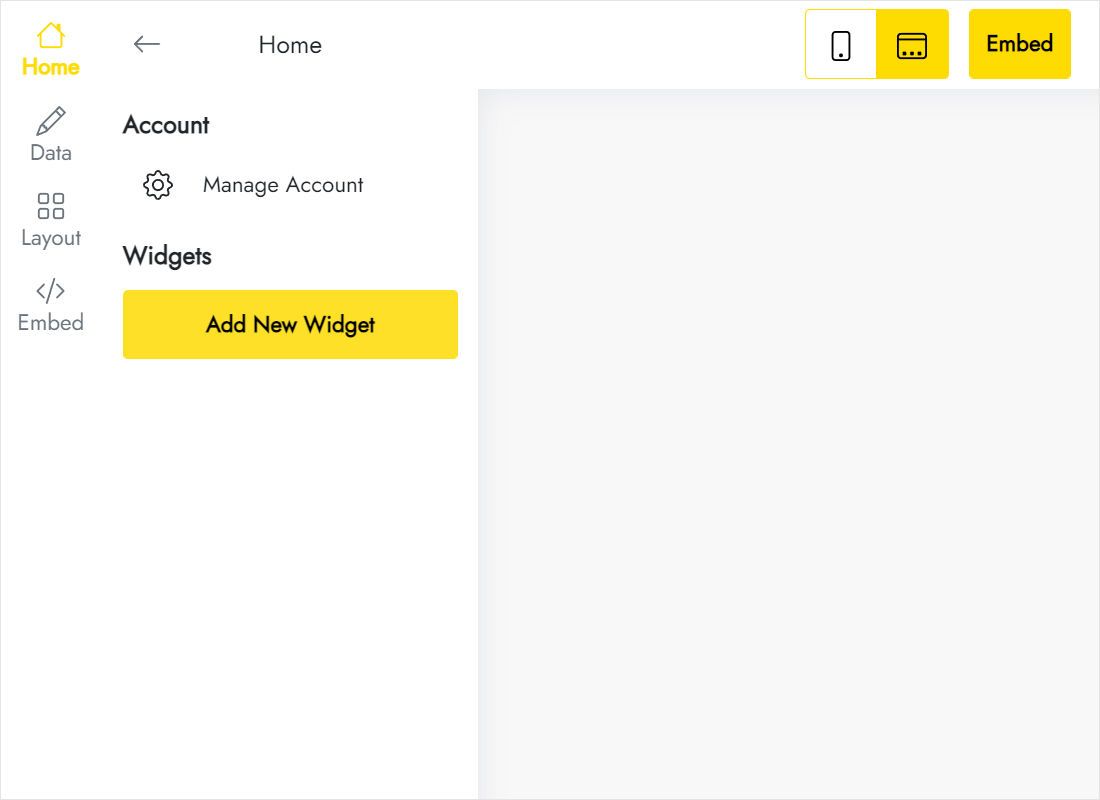
Pick Create New Widget, then X (Twitter) Feed.
-
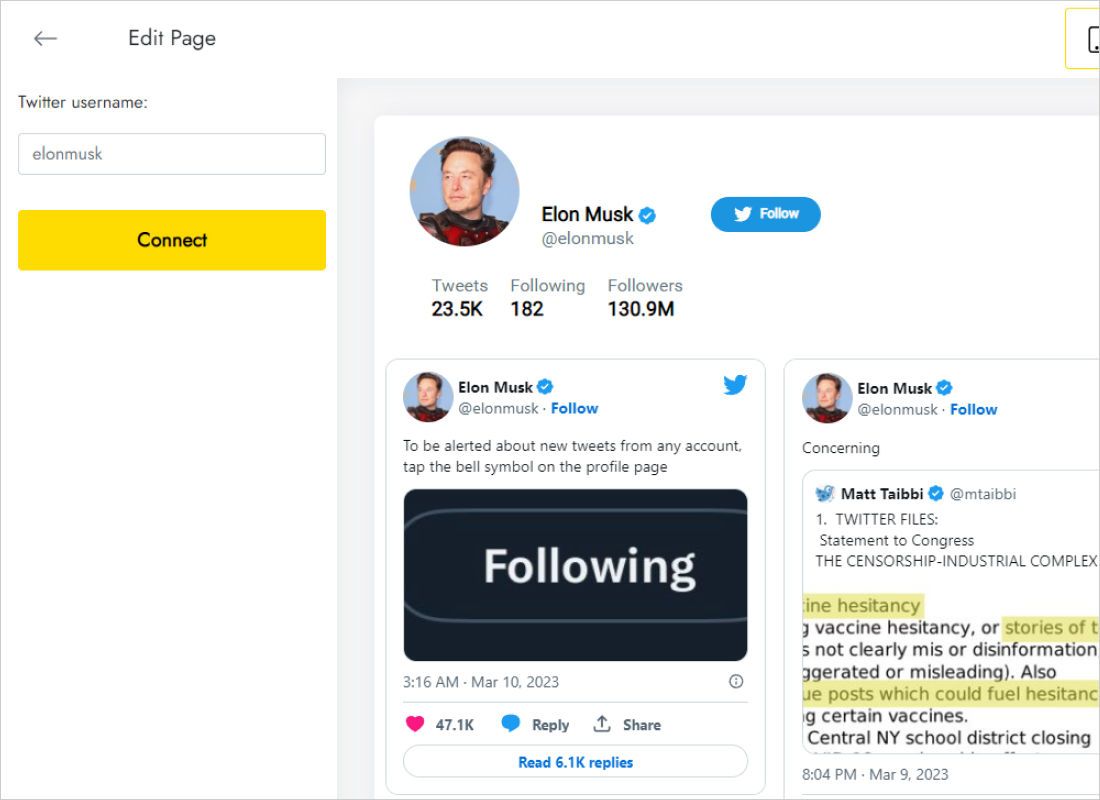
Fill in the Twitter username field on the Data tab, then click Connect.
-
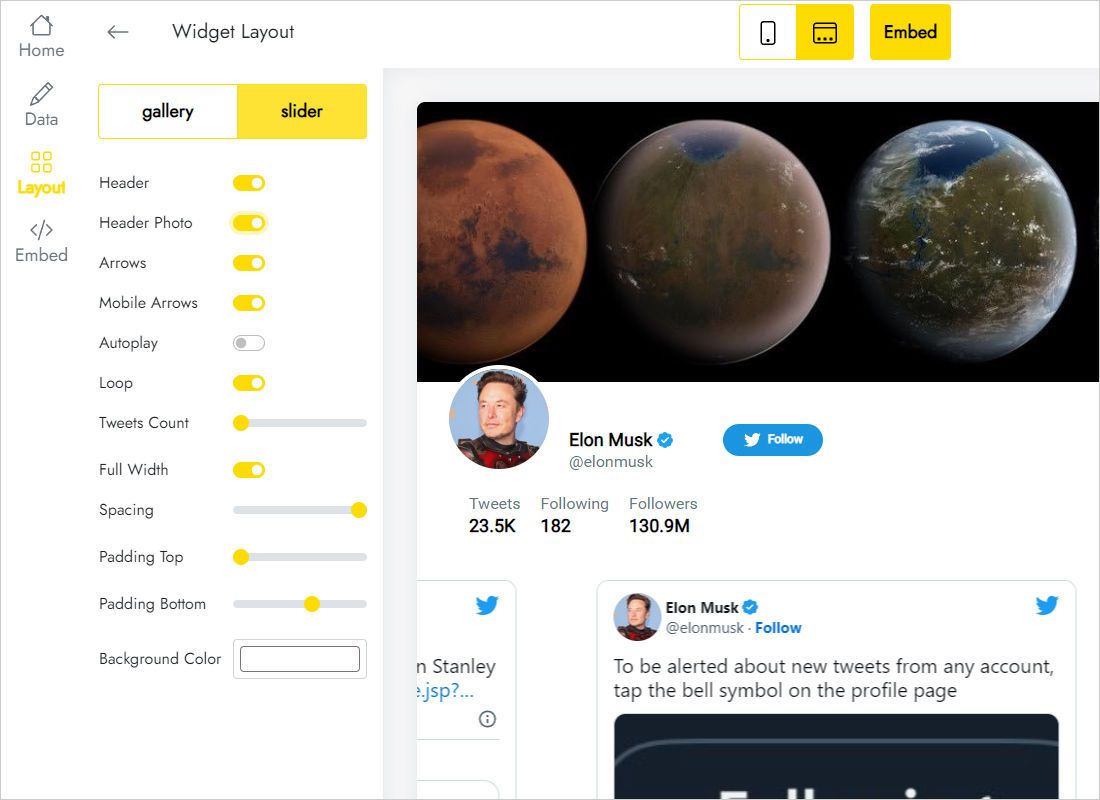
Switch to Layout for the grid type, column and row count, gaps between posts and a background colour.
-
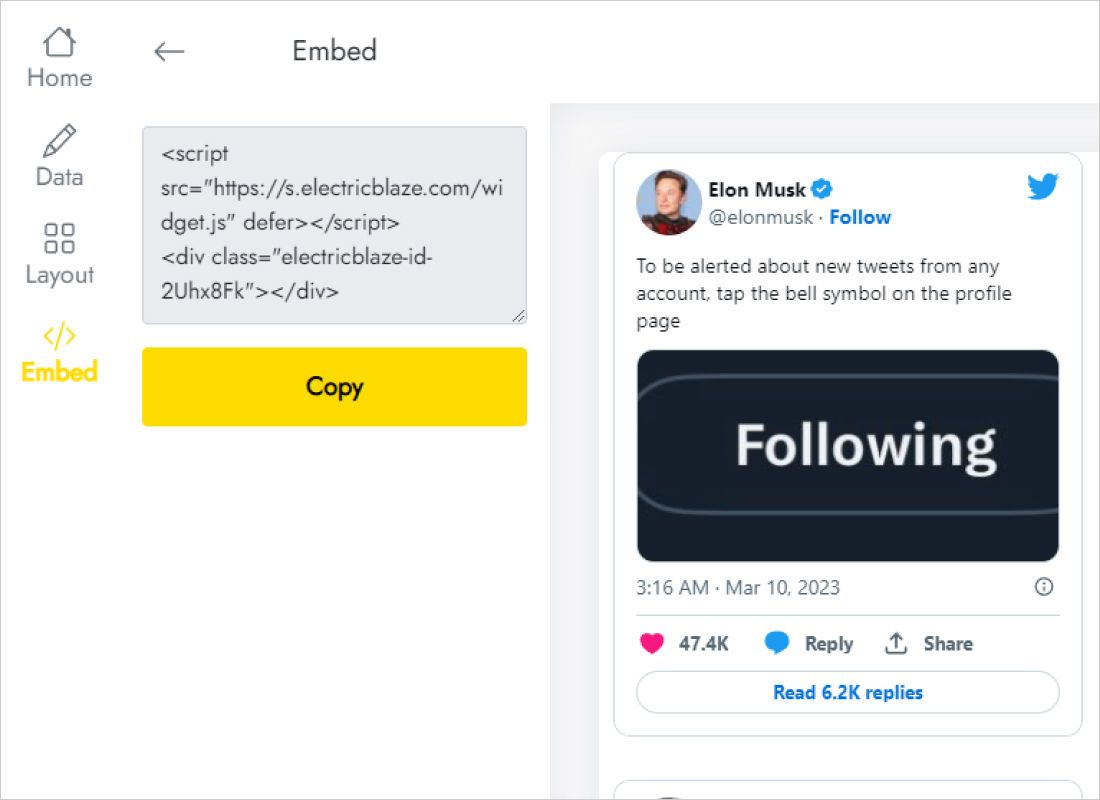
Copy the two lines that appear under Add to website.
Step 2: How to embed Twitter feed on WordPress
Pick the spot, then paste:
- Inside a post or page: type
/htmlin the block editor, open Edit HTML in the new block, drop in the lines and confirm. - In a sidebar (classic theme): under Appearance → Widgets place a Custom HTML item in the sidebar area and fill it with the code.
- In Elementor: pull the HTML element from the panel onto a column; its Code box takes the lines.
- On WordPress.com: the same Custom HTML block, once hosting features are active on a paid plan.
- Save your change and view the result logged out, since caching may hide new blocks from visitors for a while.
Scripts often stay idle inside the editor canvas, so verify posts on the public URL.
Layouts that suit a timeline
Embed Twitter feed WordPress sidebar tips
A narrow sidebar handles one column best. Two or three rows show recent posts without pushing the archive links below the fold.
- News section on the homepage: slider layout, one row, captions on, so text posts stay readable.
- Press or events page: gallery with two columns and a light background that matches the theme.
- Mobile: test a long post on a small screen; reduce rows if the block feels endless.
Fresh posts from X (Twitter) show up after the refresh interval: 24 hours on Free, one hour on the Start plan.
X (Twitter) feed on WordPress: FAQ
Which account does the timeline show?
Only the one whose handle you entered on the Data tab. To feature a partner or a sponsor, get their permission before publishing their posts.
Why is the block empty for visitors but fine for me?
A page cache is serving an older copy. Purge it, and exclude the widget script from any “delay JavaScript” option.
Can the feed go on multiple WordPress sites?
Yes. The code is not tied to a domain, so paste it on as many websites as needed.
Does it remove the ElectricBlaze branding?
Yes, on Start. That plan costs $5 per month, paid annually, and also lifts view limits.
More guides for this platform
Placement basics for WordPress, the X (Twitter) widget overview and the remaining widget guides:
Create your X (Twitter) feed
Type the handle, grab the code, and the posts appear in your WordPress column.
Create a widget