
How to Add Spotify Playlist to WordPress
Bands announcing a release, podcasters with a season list and cafés with a house mix all want listeners to press play without leaving the site. Below you add Spotify playlist to WordPress through the ElectricBlaze Music Player, as a block inside a post or as a mini player docked to the screen.
Inline block or docked mini player?
Decide on the look before copying any code, because the two variants end up in different parts of WordPress:
- Embed sits between paragraphs, the way an image would. Think tour page, album launch post or a WordPress Spotify playlist under the homepage hero.
- Floating docks a compact player to one edge of the viewport. Since it should follow visitors everywhere, its code goes into the theme footer or a site-wide code field.
Keep your Spotify (or SoundCloud) share link handy, plus an Administrator login. An audio plugin would store files in the media library and wait for updates after each core release; here Spotify streams the tracks and WordPress only carries two lines of markup.
Step 1: Point the widget at your playlist
Every switch is described alongside the player’s live preview.
-
Log into your ElectricBlaze dashboard at a.electricblaze.com (sign-up lives on that same page).
-
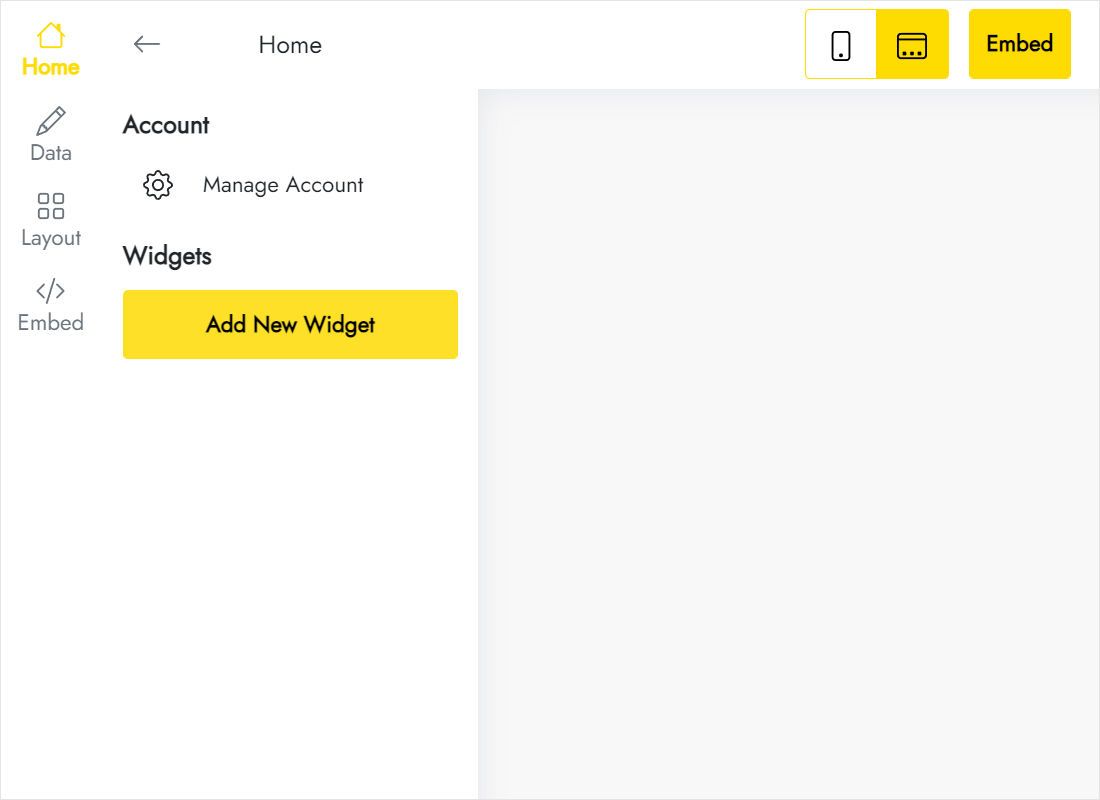
Among the widget tiles under Create New Widget, open Music Player.
-
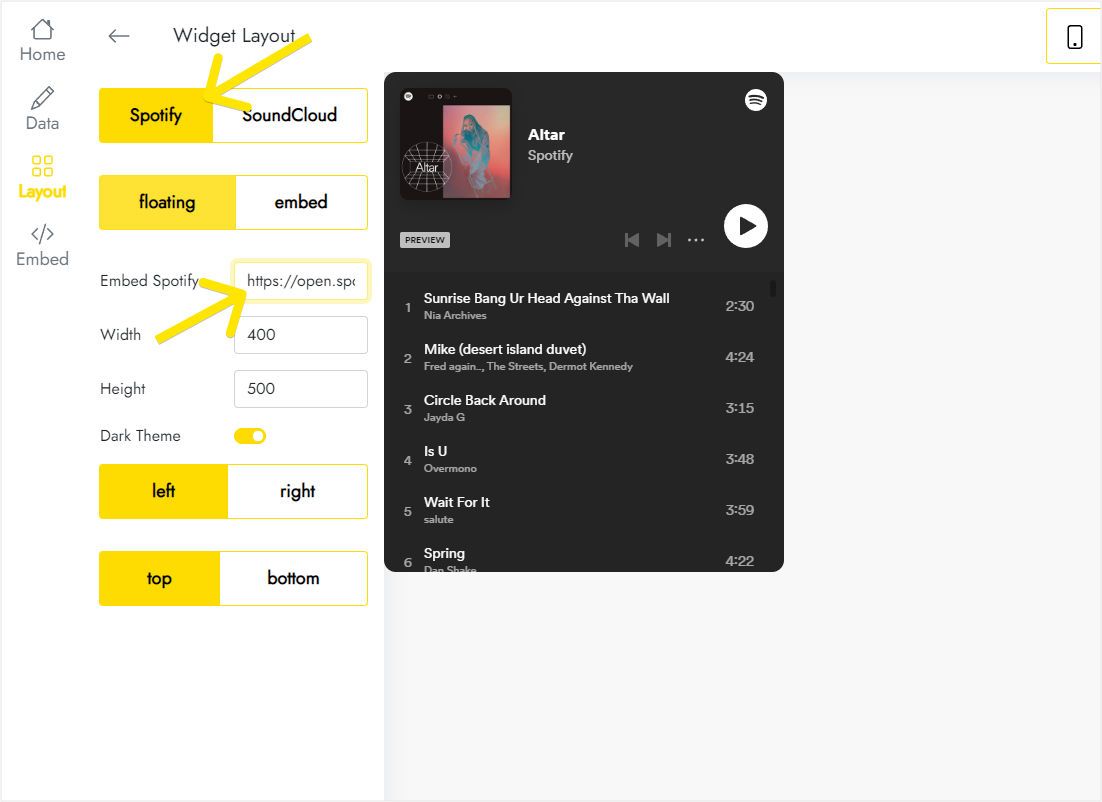
Layout tab: leave Spotify selected, keep floating, drop the playlist URL into the Embed Spotify field and pick a corner.
-
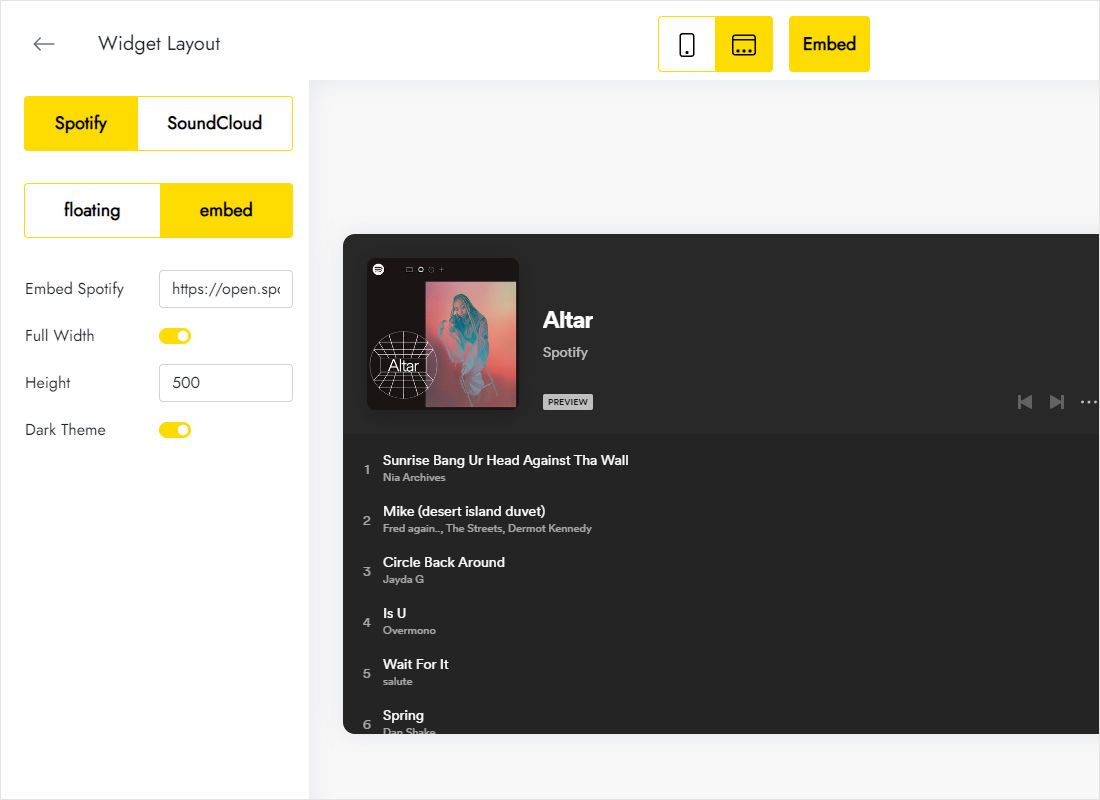
Want it in the text flow instead? Flip the mode to embed, enable Full Width and type a height.
-
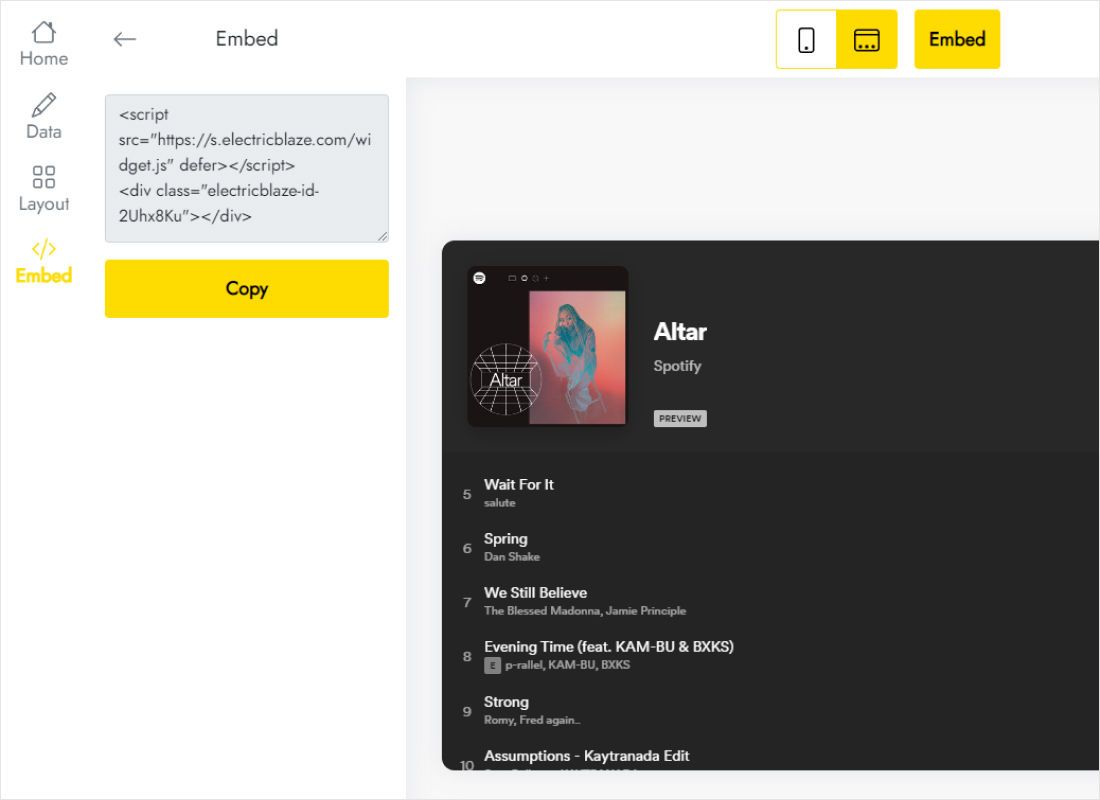
Top bar, Add to website: the two code lines are ready there.
Step 2: How to embed Spotify playlist in WordPress
The inline variant belongs in a post, the docked one in footer code.
- Embed variant: open the post, type
/htmlon an empty line, open the block’s code dialog, drop in the lines and save. - Docked, classic theme: Appearance → Widgets, then place a Custom HTML widget in a footer sidebar holding the snippet.
- Docked, block theme: Appearance → Editor, edit the Footer template part and put a Custom HTML block at its end.
- Docked via WPCode or Elementor Pro: use the footer box or the Body End location.
- Purge caches, then browse from the homepage to a blog post to watch the player on both.
Paste the docked player once only. A footer copy plus a post copy would stack two players in one corner.
Autoplay, height and phones
Silence until someone taps play
Chromium-based browsers, Safari and Firefox hold back audible playback until a visitor has interacted with the page. So the widget sits quietly with its play button ready. Blame browser policy rather than the plugin-free setup; it also keeps surprise music away from people reading at work.
Embed Spotify playlist WordPress sizing
- One album or a ten-song list reads well at a medium height, while a long mix deserves more pixels so the track list scrolls less.
- The Dark Theme toggle blends with moody or photo-heavy themes; turn it off for white layouts.
- On phones the docked player may meet a consent banner or WhatsApp chat bubble. Move it to the other side or to the top edge.
Swapping the playlist later is an ElectricBlaze edit. The WordPress markup never has to be touched again.
Spotify on WordPress: FAQ
What about SoundCloud tracks?
Select SoundCloud as the source on the Layout tab and paste that URL. The WordPress part does not change.
Will a song survive a click to the next page?
Ordinary WordPress page loads reset scripts, so the track stops. The docked player shows up again on the new page, ready for another tap.
Does Elementor preview the player?
Its editor may leave the HTML widget blank. Open the published page to hear the result.
Is Apple Music supported?
Not currently. Sources are limited to Spotify and SoundCloud.
Other WordPress how-tos
The WordPress embedding overview, the Music Player feature page and other widgets you can add:
Create your music player
Paste a playlist link, pick embed or floating and copy the code into WordPress.
Create a widget