
How to Add a TikTok Feed to Tilda
Short vertical clips show products, venues and people better than a static photo. Follow these steps to add TikTok feed to Tilda and let new uploads land on your pages automatically, arranged as a scrolling strip or a full video wall.
Before you start
Check three conditions first:
- Login details for the TikTok profile you plan to feature.
- A Personal or Business subscription for the project, because embedded code in T123 and Zero Block HTML elements is disabled for free projects.
- You have an ElectricBlaze account, which is free to open.
Pasting single video embeds one by one also works, but each new upload then means another round of editing and publishing. A feed widget skips that routine.
Step 1: Connect TikTok and design the feed
For layout examples see the strip and video wall layouts. The setup itself:
-
Your starting point is a.electricblaze.com; sign up if this is your first visit.
-
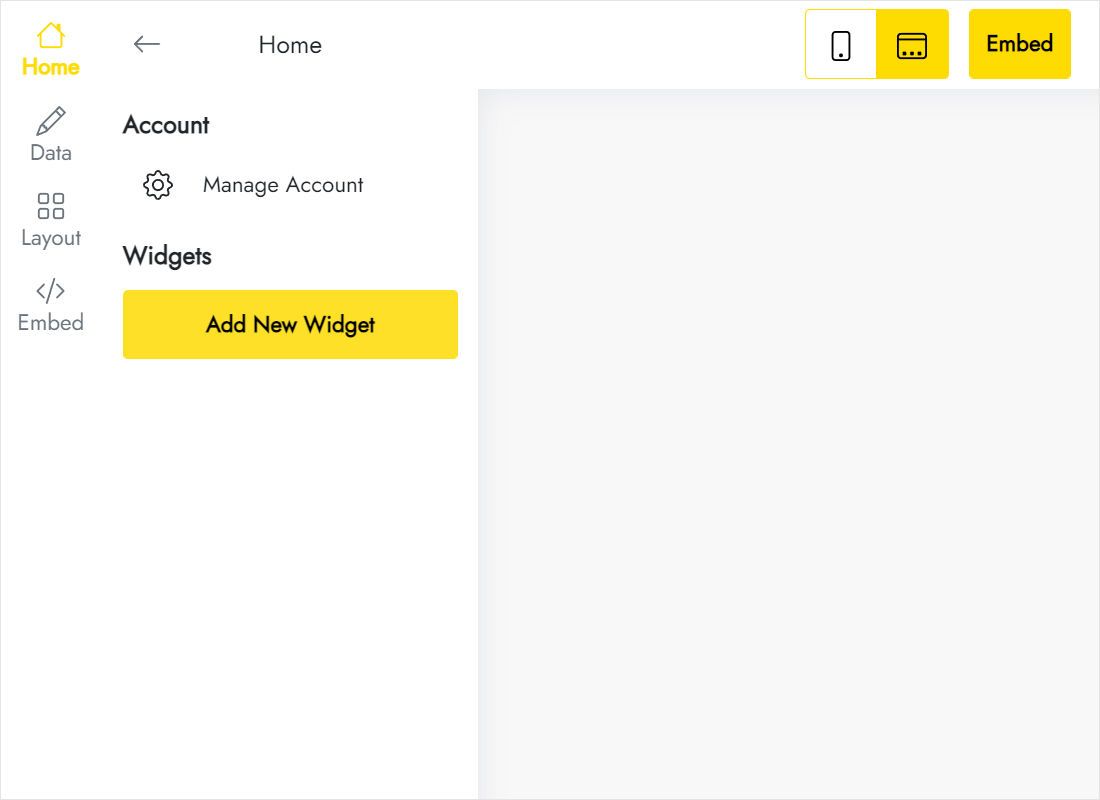
Among the types behind Create New Widget, select TikTok Feed.
-
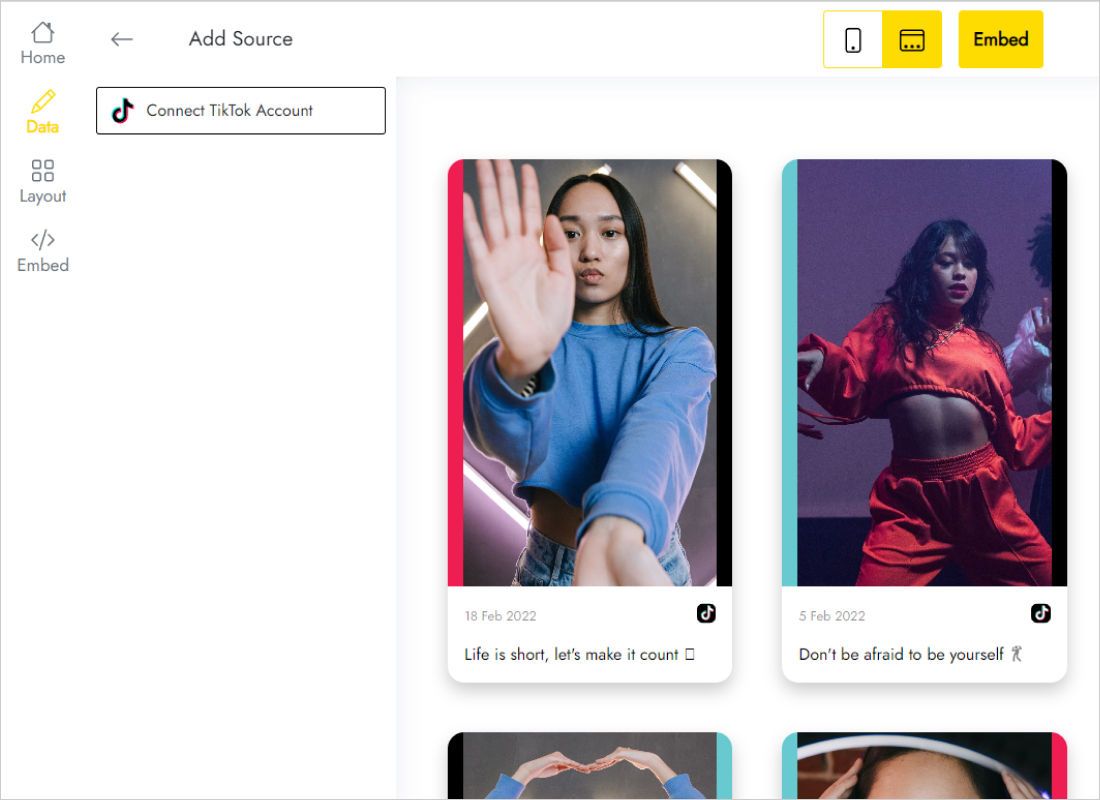
Connect TikTok Account on the Data tab opens TikTok, where you approve the access.
-
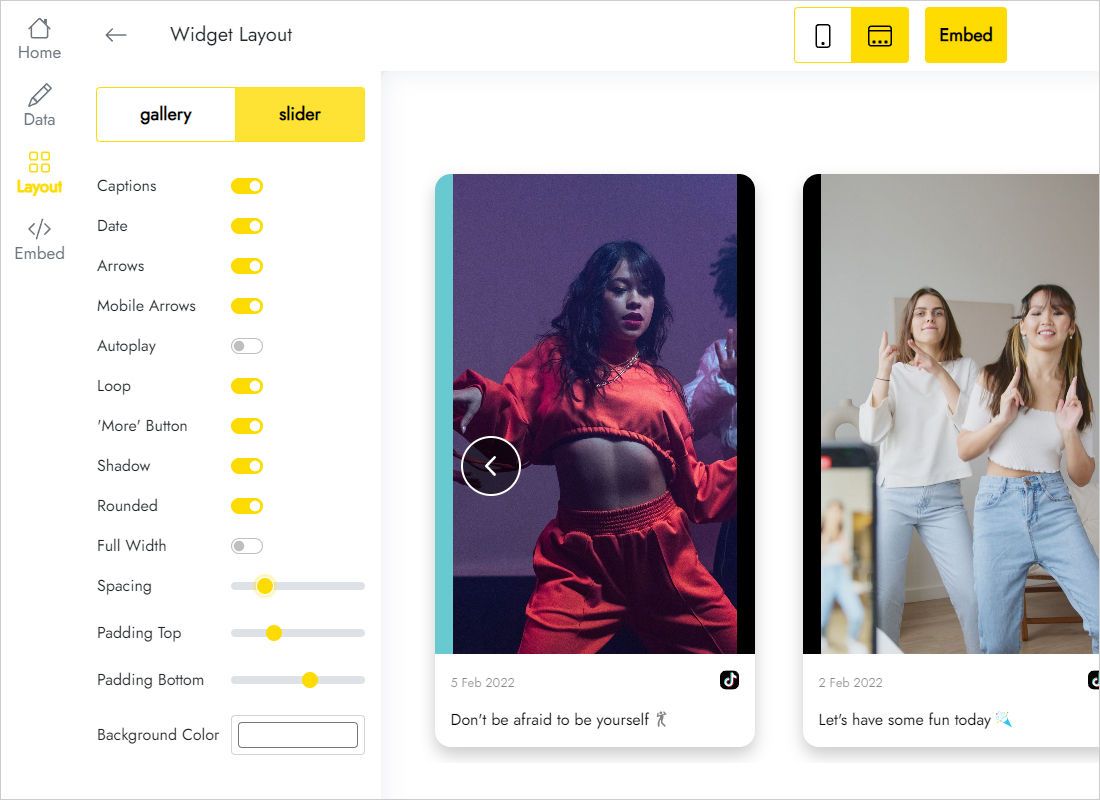
The Layout tab holds the grid-or-slider switch, column and row counts, gaps and background colour.
-
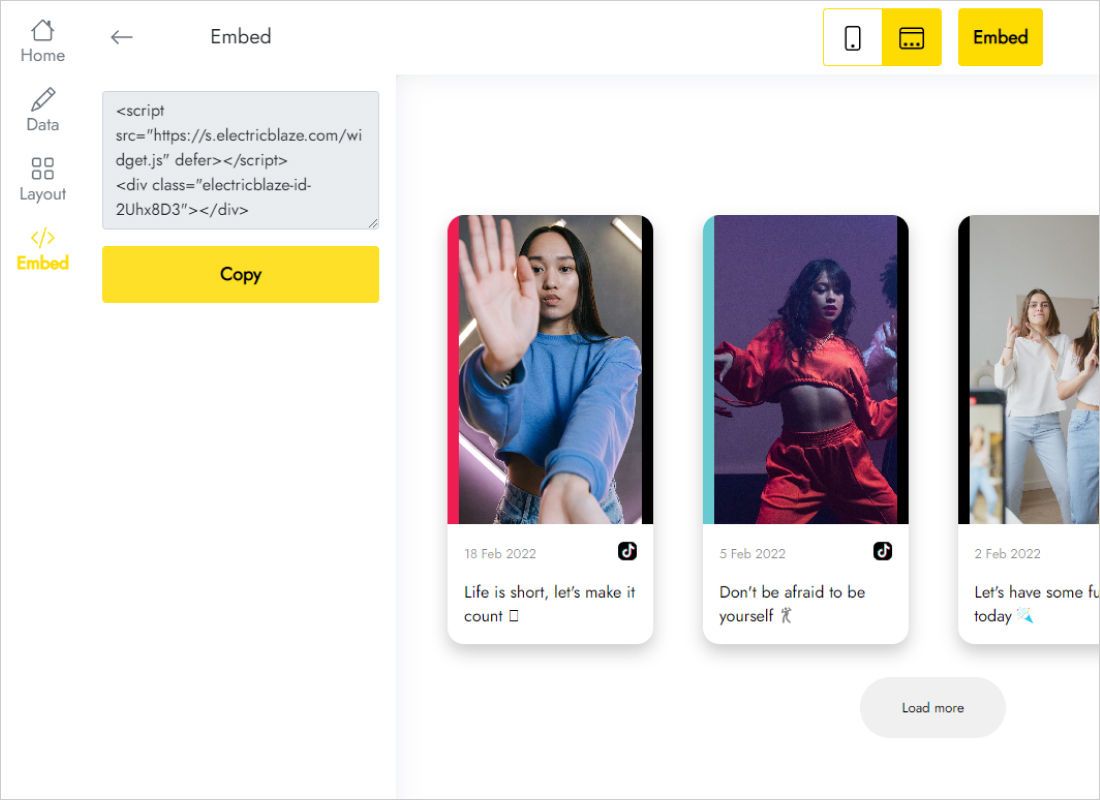
Copy the result via Add to website.
Step 2: Choose a block and paste
Choose the block type that suits the page design.
- Standard page: click the plus between two blocks, search the library for T123 and add it.
- Zero Block design: open the Zero Block editor, add an HTML element and resize its area to the space the videos should take.
- Paste the TikTok code into the block content (or the element’s code field) and save your changes.
- Clips appear only on the public link after publishing; the editor keeps showing code.
In Zero Block you set element positions per screen width. Adjust the HTML element on the tablet and phone breakpoints as well, or the feed may overlap other elements.
Making room for vertical video
Clips in 9:16 format are almost twice as tall as they are wide, so a row of them takes much more vertical space than a row of square images. A few layouts work well:
- One-row slider under the first screen. Visitors see several clips at once and swipe for more, while the page stays short.
- Four-column gallery on a “Videos” page. Two rows already make an impressive wall on a wide monitor.
- Contrasting background. Set a background in the widget that matches the block colour above, so the strip looks like part of the design.
On phones the grid shows fewer columns, so each clip gets bigger and the block grows taller. Scroll the published page on a real device before calling it done. Fresh uploads join the feed within a day on Free, or within an hour on Start.
TikTok on Tilda: FAQ
T123 or Zero Block: which is better for the feed?
T123 is simpler: it spans the page width and grows with the content. Zero Block suits pages built entirely in that editor, but you must size the element per breakpoint yourself.
Why is only code visible on the page?
Editing and preview modes keep scripts off. Publish, and the videos replace the code.
Can the feed show a hashtag instead of my account?
The widget displays clips from the TikTok account you connect on the Data tab.
Can I reuse the feed on another website?
Yes. ElectricBlaze plans allow unlimited websites, so the same snippet can run on this project and on any other site you manage, whichever builder it uses.
Bring your TikTok clips to Tilda
Link TikTok, pick a strip or a wall of clips, paste into T123. No charge to begin.
Create a widget