
How to Add an Instagram Feed to Tilda
Photos from your profile make a landing page feel alive. This guide explains how to add Instagram feed to Tilda using an ElectricBlaze widget and the Embed HTML code block, and how to choose between a full grid and a compact slider.
Requirements
- Instagram Creator or Business account. Personal profiles do not share their posts with external tools. You can switch the account type in the Instagram app settings.
- A paid Tilda subscription (Personal or Business). Code placed in block T123 is disabled on the Free plan.
- An ElectricBlaze login; its no-cost tier includes five widgets.
After the first publish you can forget the editor: every new Instagram upload finds its way into the block automatically.
Step 1: Make the Instagram widget
A full list of options is in the grid, slider and caption reference. To create the gallery:
-
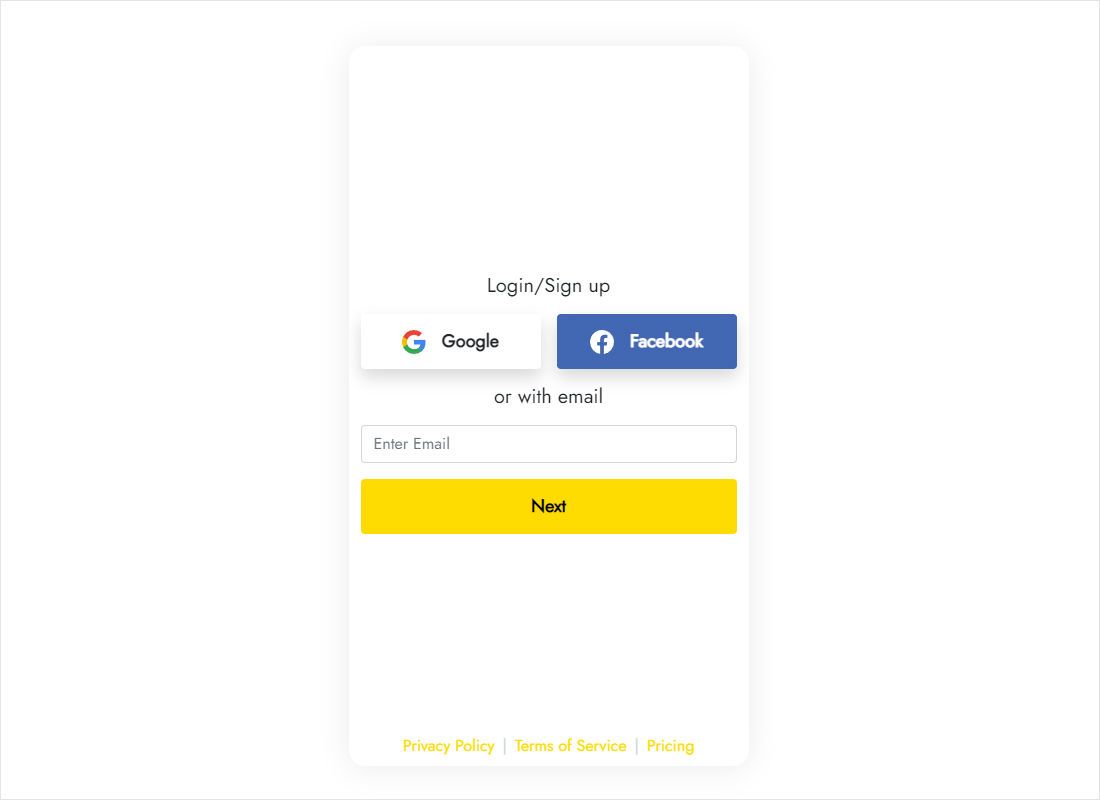
Visit a.electricblaze.com, where an existing login or a quick free sign-up gets you in.
-
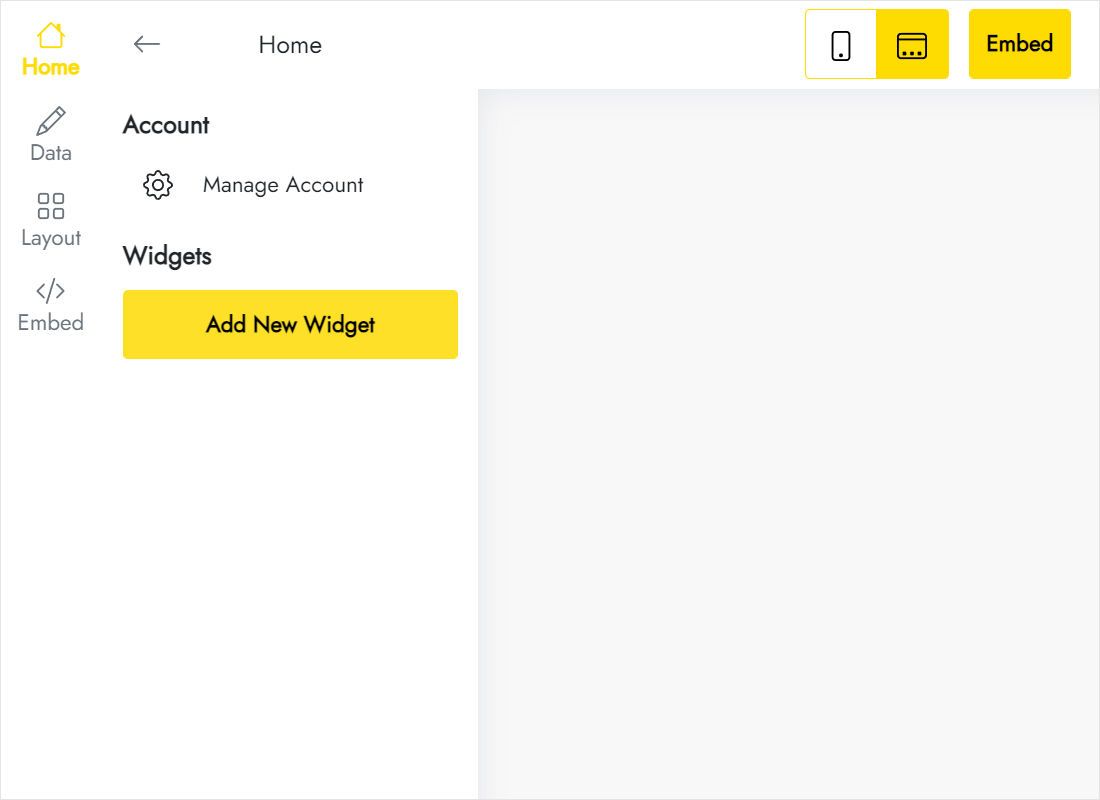
Start with Create New Widget; the Instagram Feed card is in the catalogue.
-
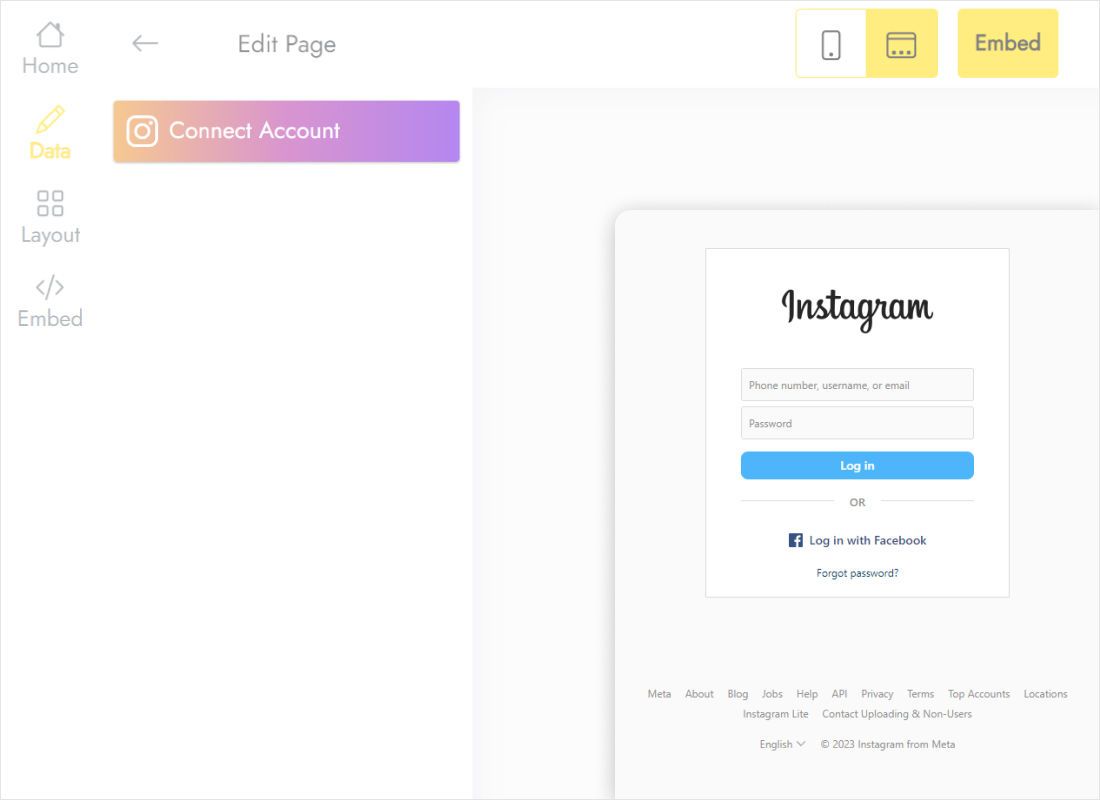
In Data use Connect Account, then approve the request inside the Instagram login window.
-
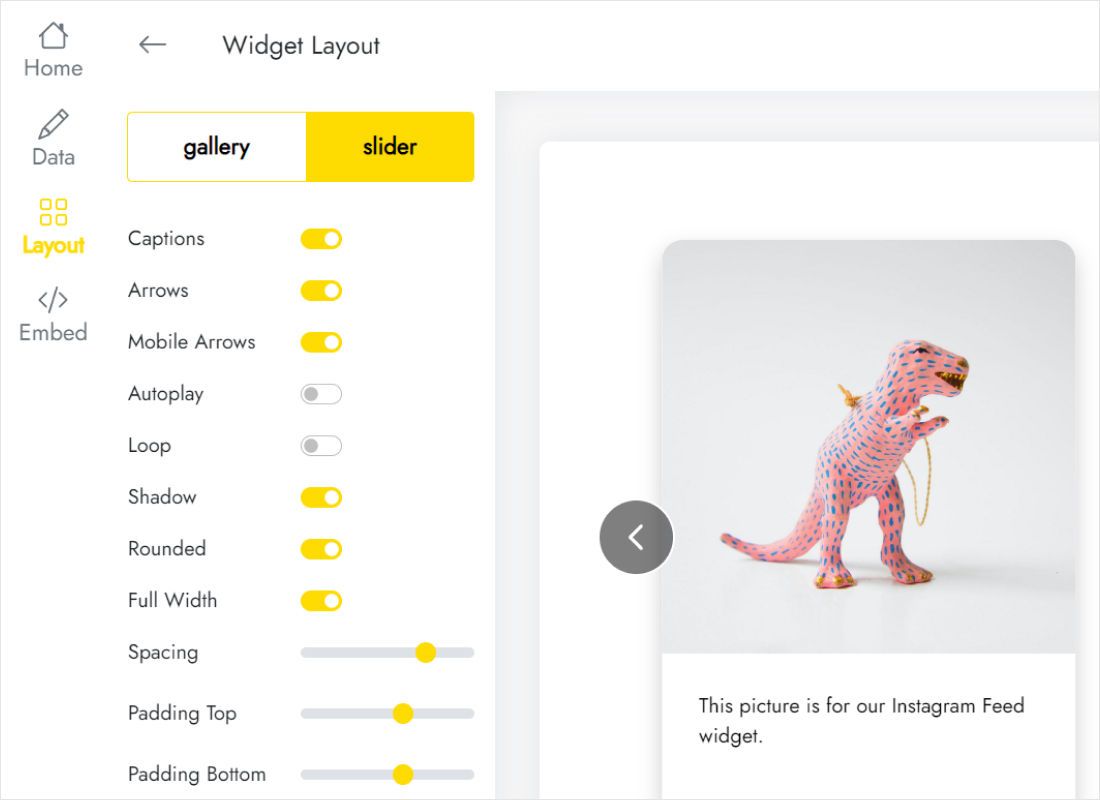
Under Layout decide between a photo grid and a slider, then tune columns, rows, gaps and captions.
-
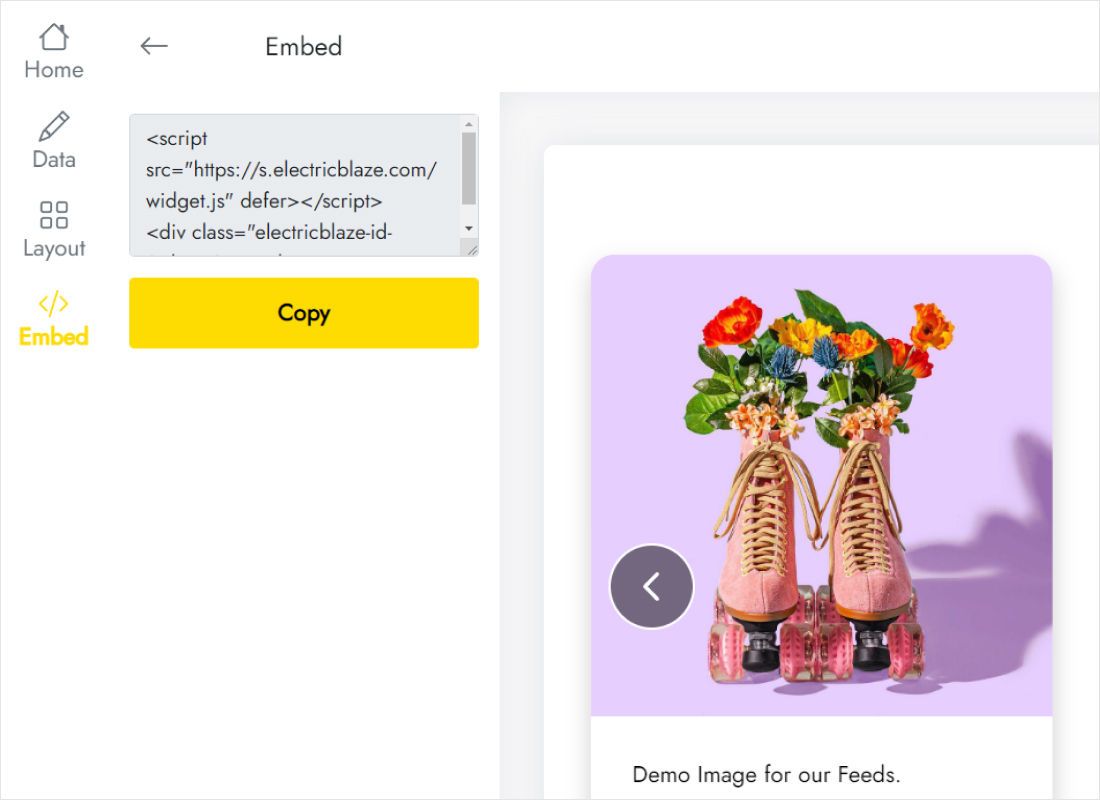
Add to website opens the code; copy it to the clipboard.
Step 2: Paste the code into block T123
Open the Tilda page editor for the page that should show the photos.
- Find the spot for the gallery, for example below the cover block, and click the plus sign between blocks to open the library.
- In the Other category select T123, labelled “Embed HTML code”.
- Click Content on that block, paste the Instagram snippet and save with Save & Close.
- Publish the page. In the editor you will only see the raw code; the photo grid shows up on the live URL.
Using Zero Block for a custom layout? Add an HTML element inside it and paste the same snippet; it runs the same way as T123.
Grid, slider and mobile layout on Tilda
Unlike iframe-based builders, the T123 block does not have a fixed height. It grows with the widget, so you choose the size through the layout settings in ElectricBlaze instead of dragging a frame.
- Portfolio or shop page. A gallery of three or four columns and two rows looks balanced below a product description.
- Home page teaser. A slider with one row keeps the block short, so visitors still reach the contact form, or a WhatsApp chat bubble, quickly.
- Edge-to-edge look. Switch on Full Width and set the background to match the neighbouring Tilda blocks.
- Phones. The columns fold into fewer per row on small screens. Open the published page on a phone to check that the number of rows still feels right.
The gallery checks for new photos daily with a Free widget, or hourly after upgrading to Start. Should you delete the block one day, republish so visitors stop seeing it.
Instagram on Tilda: FAQ
Why do I see code instead of photos in the editor?
The builder never runs custom scripts in edit or preview mode. Publish the page and open its public address.
Can I show the same gallery on several Tilda pages?
Yes. Copy the T123 block to other pages or paste the snippet into a new block. One widget serves every copy.
My block is empty after changing plans. What happened?
A switch to the Free plan turns off code in T123. Upgrade again, then republish the page and check the gallery on the live site.
Do hashtags or tagged posts show up?
The widget displays posts from the connected account. Connect the profile whose content you want visitors to see.
Related instructions
The Instagram widget overview, the general setup for this builder and guides for other widgets:
Create your Instagram gallery
Link the profile, choose grid or slider, and the T123 block does the rest.
Create a widget