
How to Add WhatsApp Chat Button to Hostinger
A tap-to-chat bubble turns browsers into conversations. Follow these steps to add WhatsApp chat button to Hostinger Website Builder sites, with optional Telegram, Messenger, Viber, Signal and Discord links in one small popup.
Where a chat bubble belongs
The ElectricBlaze Popup Chat is a floating button: it hovers in the bottom corner of the browser window instead of occupying a slot in your layout. On Hostinger that decides the location: an Embed code element would cage it in one page rectangle, so the lines go into Custom code, the global box inside Integrations.
Have these ready: your WhatsApp number with country code, handles for any other messengers, and access to the builder. Sites that run WordPress on Hostinger hosting should use the WordPress chat guide, found among instructions for every builder, instead.
Step 1: Enter numbers and greeting
The WhatsApp and Telegram bubble rundown covers every field; the essentials follow.
-
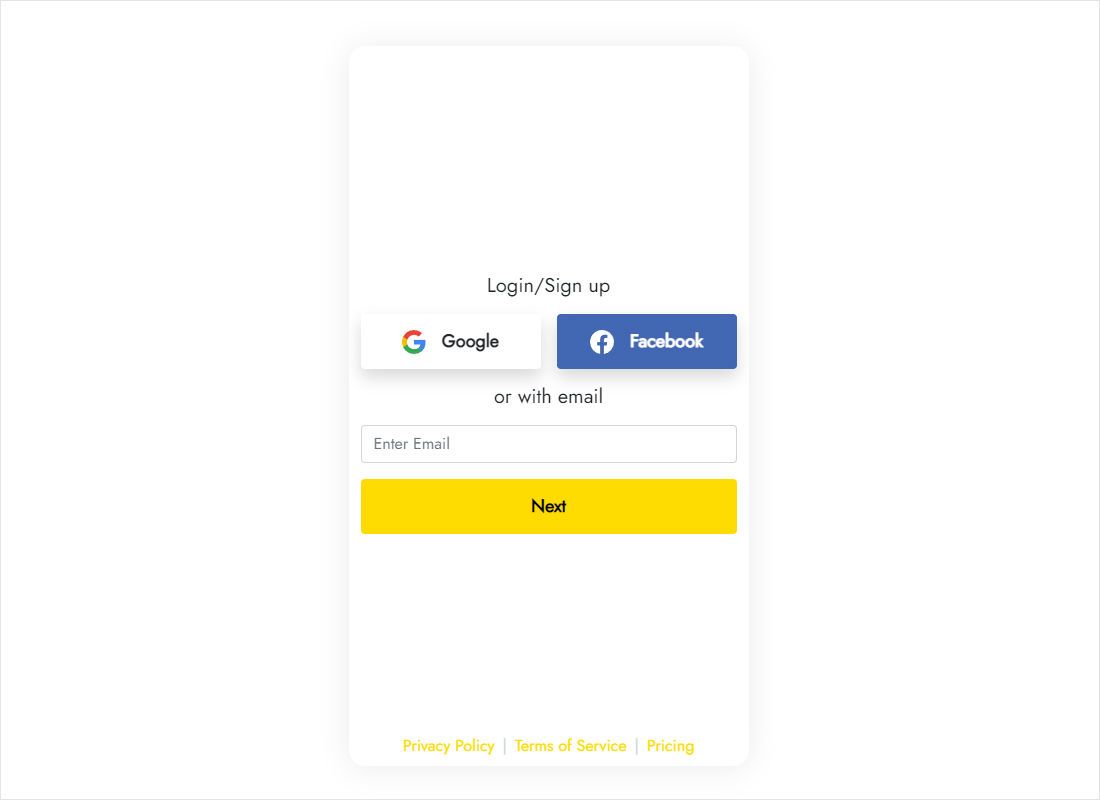
Get into ElectricBlaze at a.electricblaze.com, registering if needed.
-
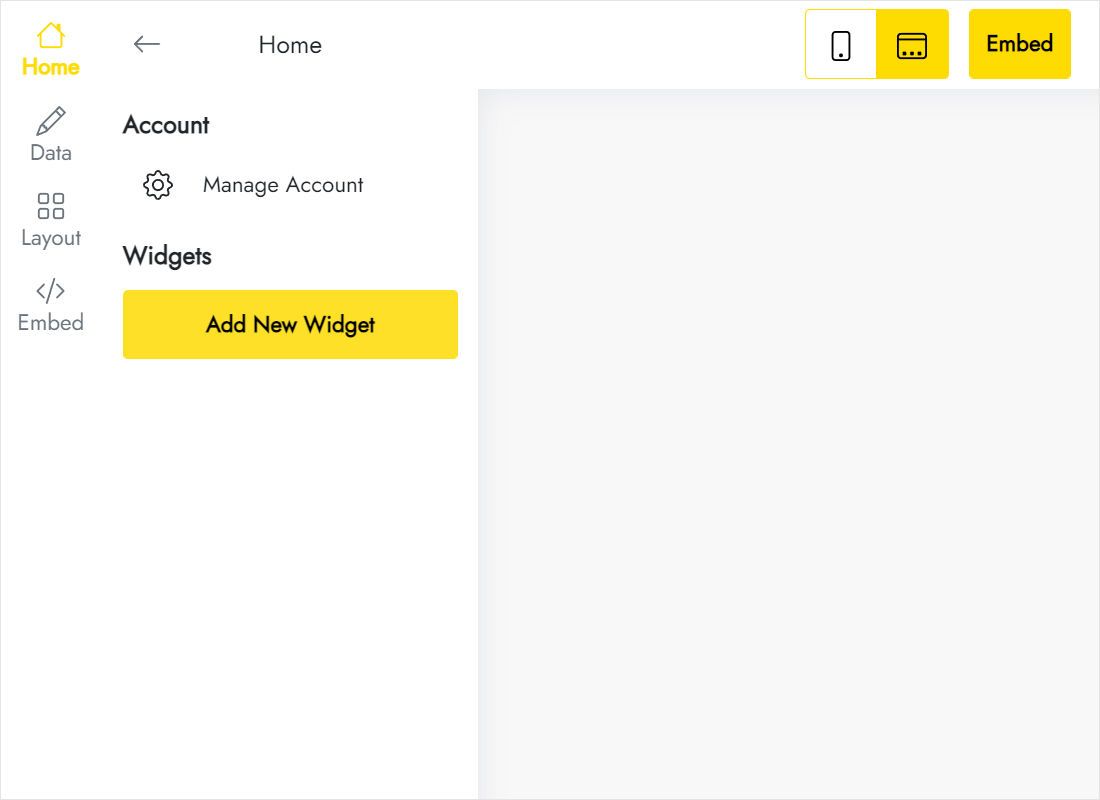
Choose Popup Chat from the Create New Widget tiles.
-
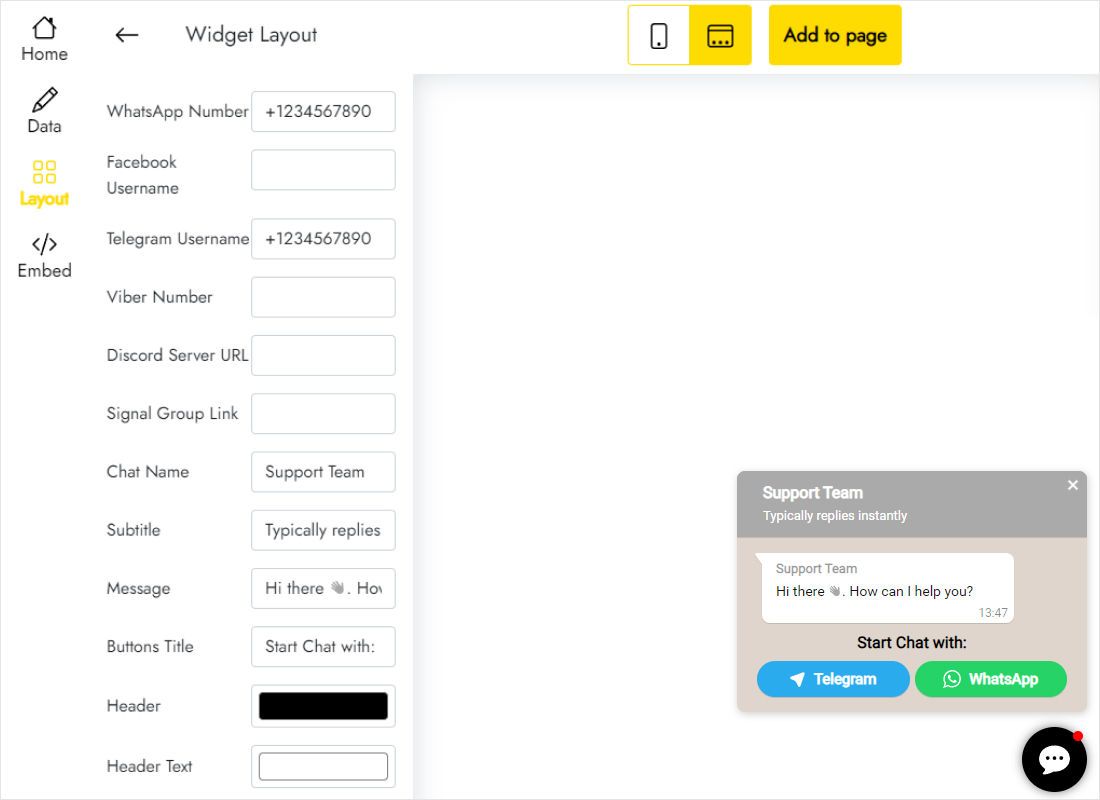
In Layout type the WhatsApp number; Telegram, Viber, Signal, Discord and Messenger fields are optional.
-
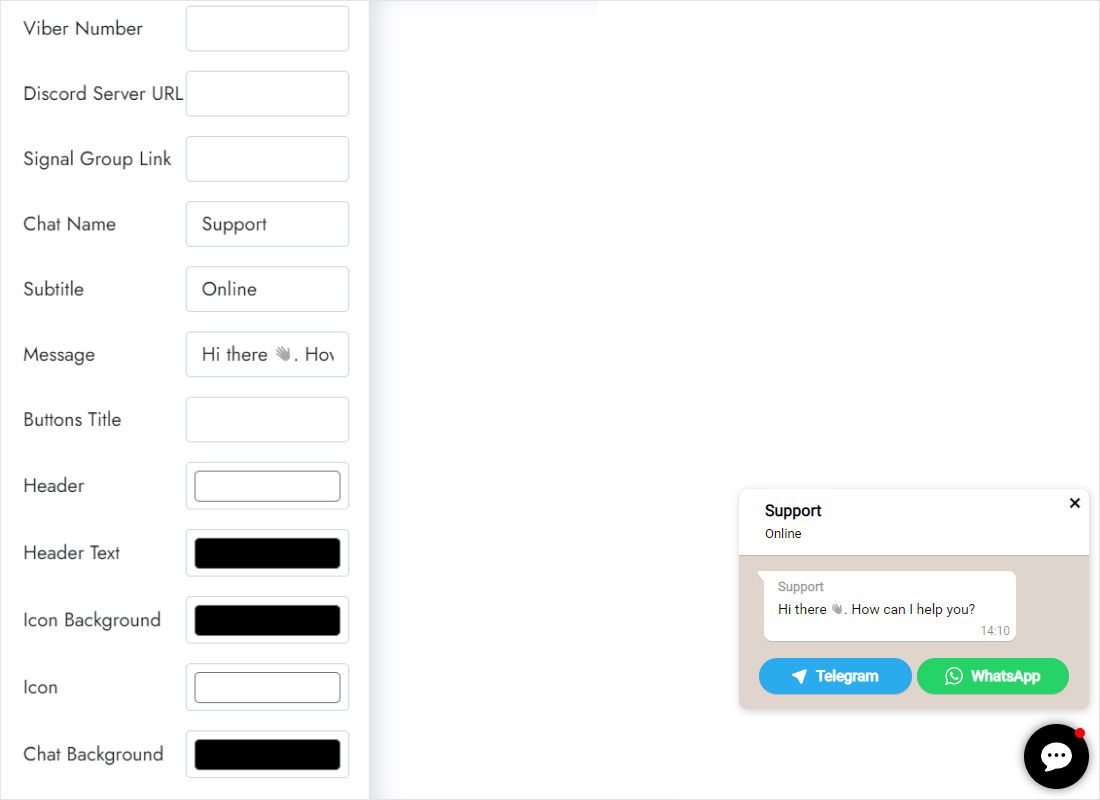
Scroll on to title the chat, write a subtitle and welcome line, and colour the header and buttons.
-
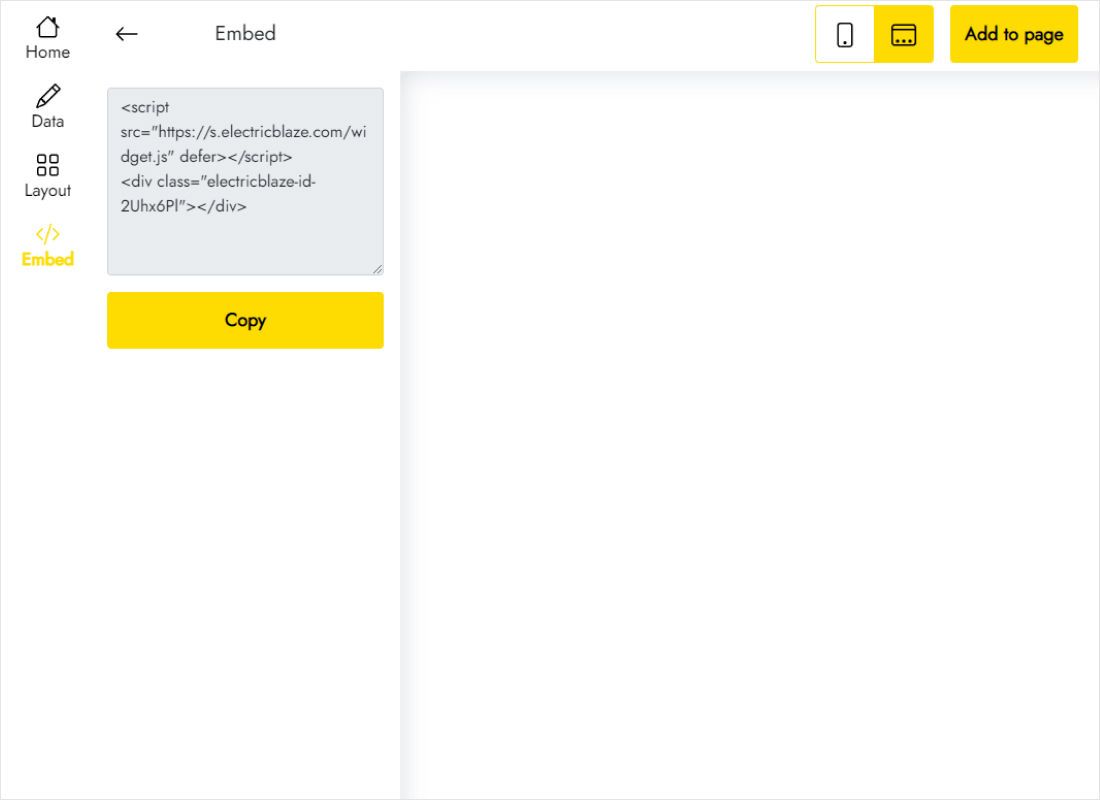
Copy the lines behind Add to website.
Step 2: Switch the button on site-wide
All of this happens in Hostinger Website Builder settings, not on a page.
- In the builder, click the More (⋯) button to reach website settings.
- Choose Integrations and scroll to the Custom code field.
- Paste the chat snippet. If analytics or pixel codes are already there, add it on a new line underneath rather than in the middle of them.
- Close the settings and press Update website; until then the code stays in the draft.
- Visit the homepage, a service page and the contact page to confirm the bubble shows up on each.
Custom code does not run in the builder editor, so the bubble appears only on the published site.
Mobile checks for the chat bubble
Most chat traffic comes from phones, where the corner of the screen is crowded. Before you call it done, open the site on a real handset:
- Cookie consent bar. If it covers the lower edge, accept or dismiss it and make sure the bubble can still be tapped.
- Another chat tool. Two bubbles in one corner confuse visitors. Keep a single chat widget.
- Sticky elements. Scroll to the footer and check that no fixed bar in your design hides the button.
Tapping the WhatsApp option opens the app on phones or WhatsApp Web on computers, with your number filled in. Conversations happen there, not on ElectricBlaze.
WhatsApp on Hostinger: FAQ
Can I show the button on just one page?
Custom code always applies site-wide. An Embed code element on one page limits the scope, but the bubble may then be confined to that element box, so we recommend the site-wide field.
How do I change the phone number later?
Change it on the Layout tab in ElectricBlaze; nothing on the Hostinger side needs editing.
Is WhatsApp Business required?
No. The button works with a regular or a Business WhatsApp number.
What does it cost?
Free handles up to a thousand monthly views. Start lifts that limit and hides the ElectricBlaze credit.
Hostinger help index
Back to the Hostinger embedding overview, the Popup Chat features or another widget:
Create your chat button
Enter a WhatsApp number, copy the code and paste it into Integrations.
Create a widget