
How to Add a Hostinger Instagram Feed with Captions
Recent shots from Instagram give a builder site some movement between redesigns. This guide sets up a Hostinger Instagram feed with an ElectricBlaze widget and explains how to size the embed so the grid is not clipped on laptops or phones.
Built-in element or widget?
Hostinger Website Builder already ships an Instagram feed element with items per row, total items and gap settings. For a simple photo row it is a sensible pick.
An ElectricBlaze widget adds things that element does not list: a slider layout, captions you can switch on or off, background and full-width options, and one widget you can paste on several websites at once. You will need:
- An Instagram Business or Creator account.
- An ElectricBlaze login (the entry tier is free).
- A site in the builder. WordPress sites hosted by Hostinger follow the WordPress guide in the help centre’s builder list instead.
Step 1: Design the gallery
See the full breakdown of Instagram layouts for every setting. In brief:
-
Go to the app at a.electricblaze.com and sign in or register.
-
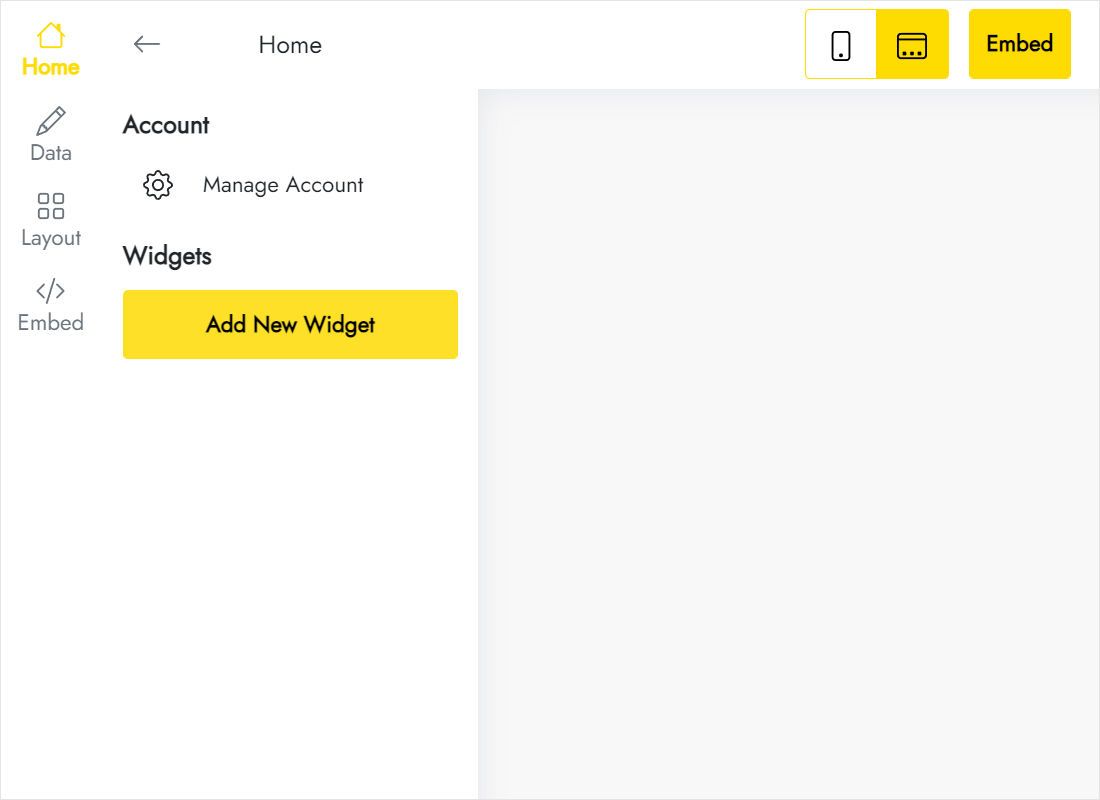
Hit Create New Widget; Instagram Feed is one of the tiles.
-
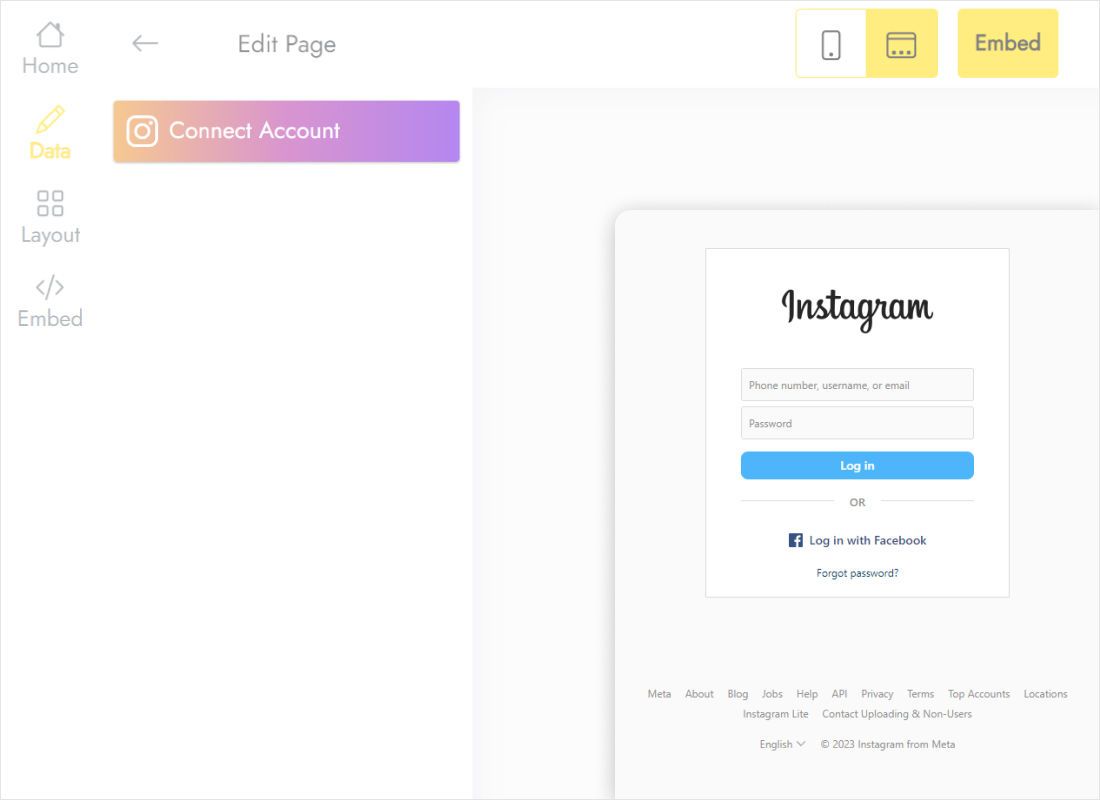
Connect Account sits on the Data tab; confirm the Instagram login it opens.
-
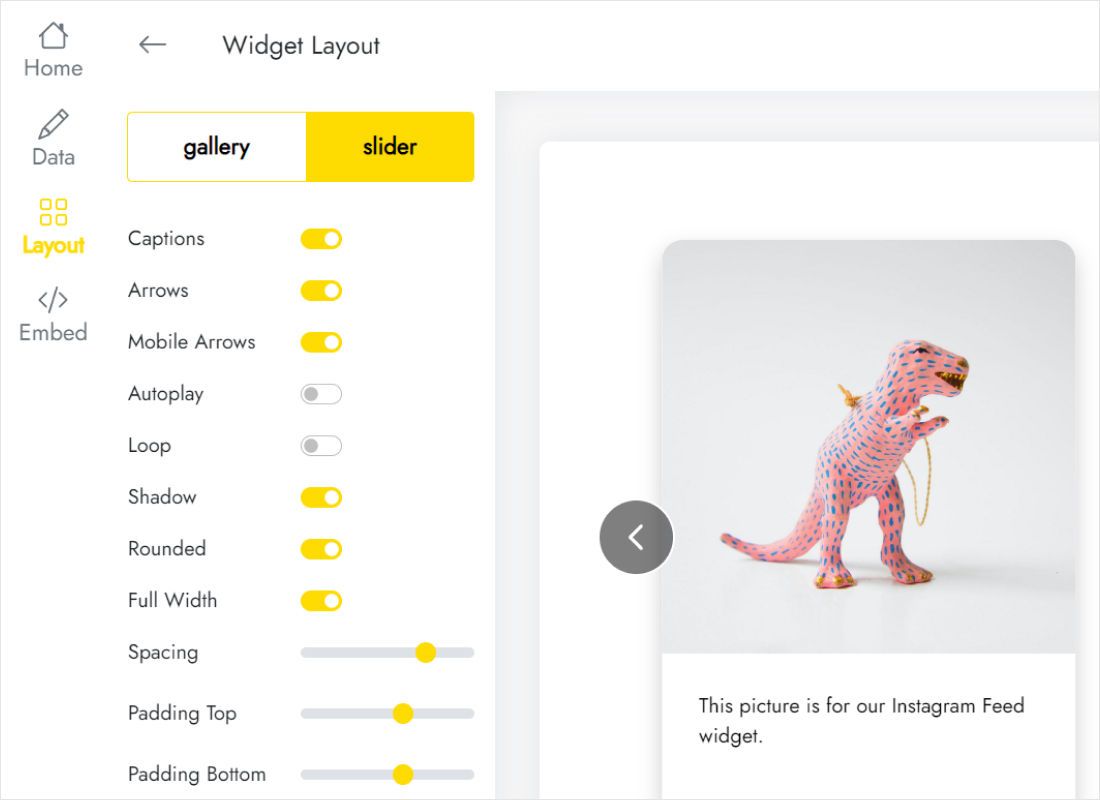
Next, Layout: slider or gallery, how many columns, and captions under photos or not.
-
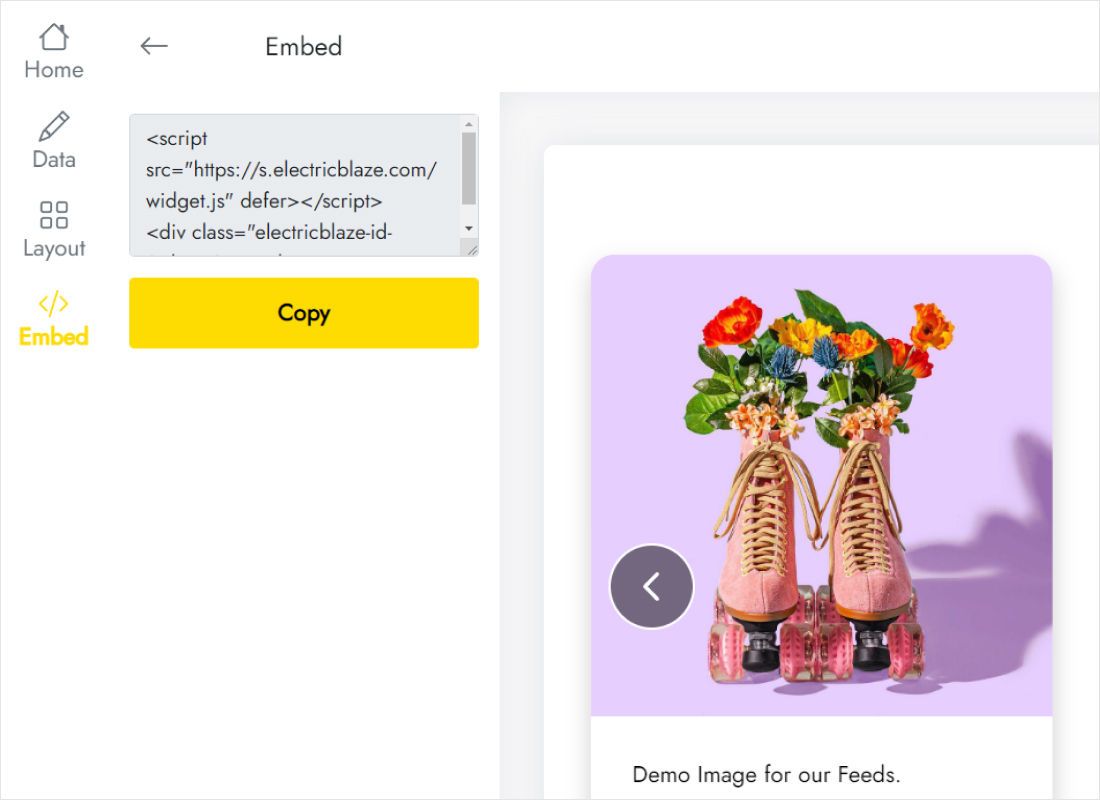
The Add to website button reveals the lines to copy.
Step 2: Drop the gallery into the builder
With the code copied, go to your site editor.
- Select the page where the photos belong, such as Portfolio or About.
- From the Add elements list on the left, drag Embed code beneath your text.
- Click it, choose Enter code, paste, and save with Embed code.
- Resize the element to the full content width and give it roughly the height of the rows you chose.
- Hit Update website, then compare the result on a laptop and a smartphone.
Third-party scripts are not rendered on the editing canvas, so a grey placeholder is expected until you open the live site.
Sizing the photo grid
The Embed code element keeps whatever height you drag it to, while the widget height depends on rows and captions. Adjust one to match the other:
- Gallery with captions: leave extra space per row, since text adds height under each photo.
- Slider: a single strip keeps the element short and suits a footer or a narrow section.
- Mobile view: switch the builder to its mobile layout. Columns wrap on small screens, so increase the element height there.
Whenever you post, the grid catches up at the next refresh (every 24 hours on Free, hourly with Start) while the builder page stays untouched.
Instagram photos on Hostinger: FAQ
Why can’t I connect a personal Instagram profile?
Third-party access is limited to Business and Creator profiles. Convert yours under the professional account settings in Instagram, then reconnect.
The gallery is cut off at the bottom. What now?
Make the Embed code frame taller, or trim rows in ElectricBlaze. The mobile arrangement needs its own check.
Can I have both the native element and this widget?
Yes, they do not interfere. Most sites use one, though, to avoid showing the same photos twice.
Is it free?
Up to five widgets cost nothing, with a monthly allowance of 1,000 views. The paid Start tier drops branding and lifts the view cap.
More for Hostinger users
Read the Hostinger embedding overview, the Instagram widget details or another widget walkthrough:
Start your photo feed
Link Instagram once and let new photos flow onto your Hostinger page.
Create a widget