
How to Add a Hostinger Music Player
A band, DJ or yoga studio site feels incomplete without sound. This walkthrough puts a Hostinger music player on your builder site using ElectricBlaze, fed by a Spotify or SoundCloud link, and shows where each player mode must be pasted.
Inline player or corner player?
The widget runs in one of two modes, and the Hostinger side differs for each:
- Embed behaves like a block in the page. It goes into an Embed code element, like a video would.
- Floating pins a small player to a screen corner on every page. Boxed inside an element it cannot float, which is why this mode needs the global Custom code box found in Integrations.
Prepare a public Spotify or SoundCloud URL and an ElectricBlaze login. Running WordPress on Hostinger hosting instead of the builder? Read the WordPress music guide, listed in the builder-by-builder help center.
Step 1: Feed the player a playlist link
The player rundown with live examples explains each field. For a quick build:
-
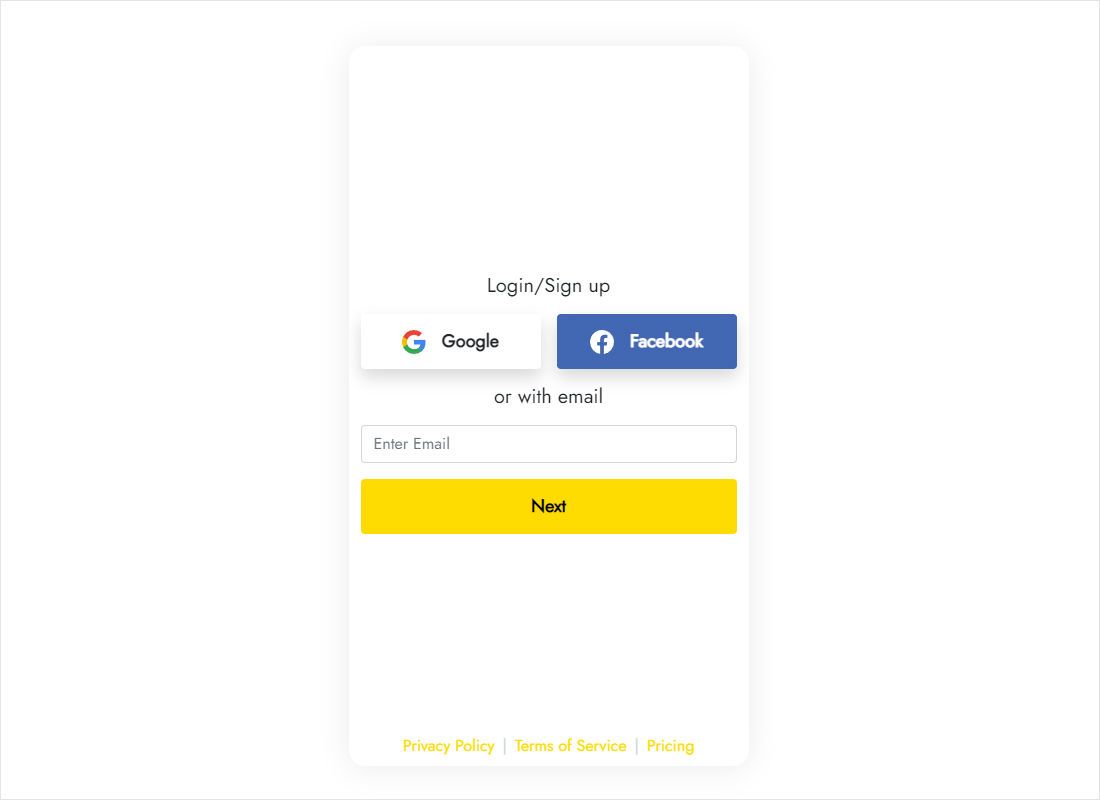
Open a.electricblaze.com and authenticate; brand-new users create a login first.
-
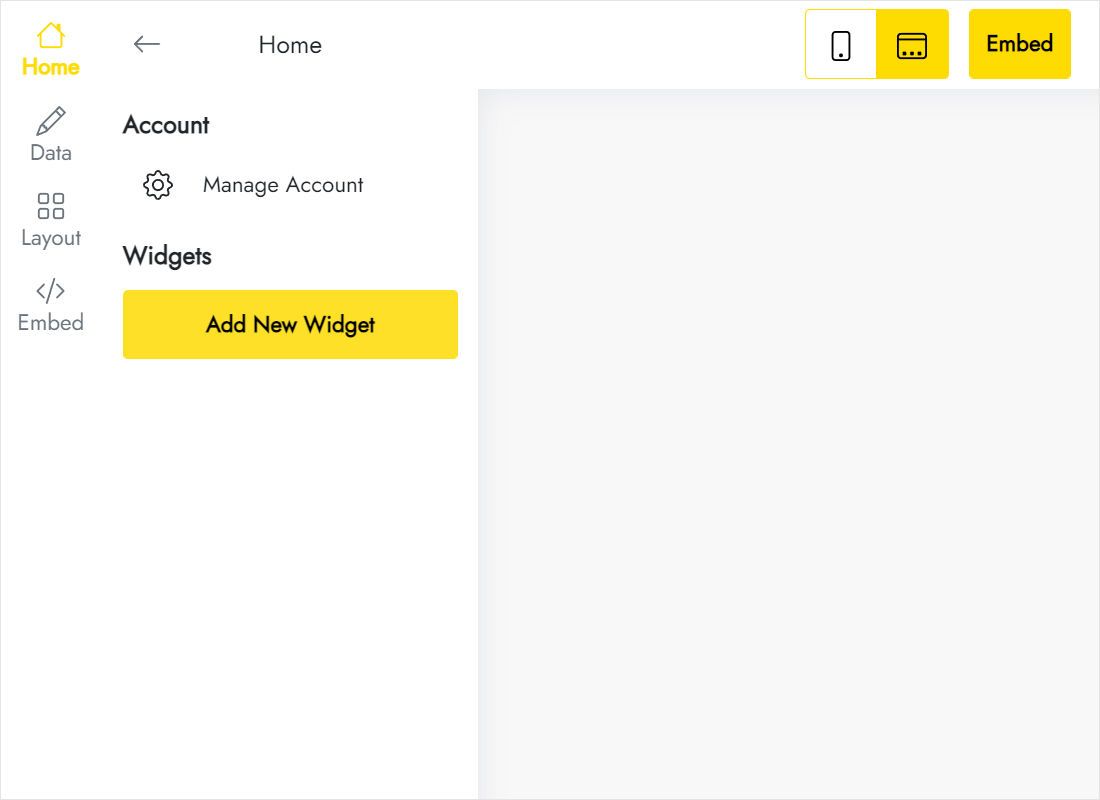
Music Player is one of the tiles offered by Create New Widget.
-
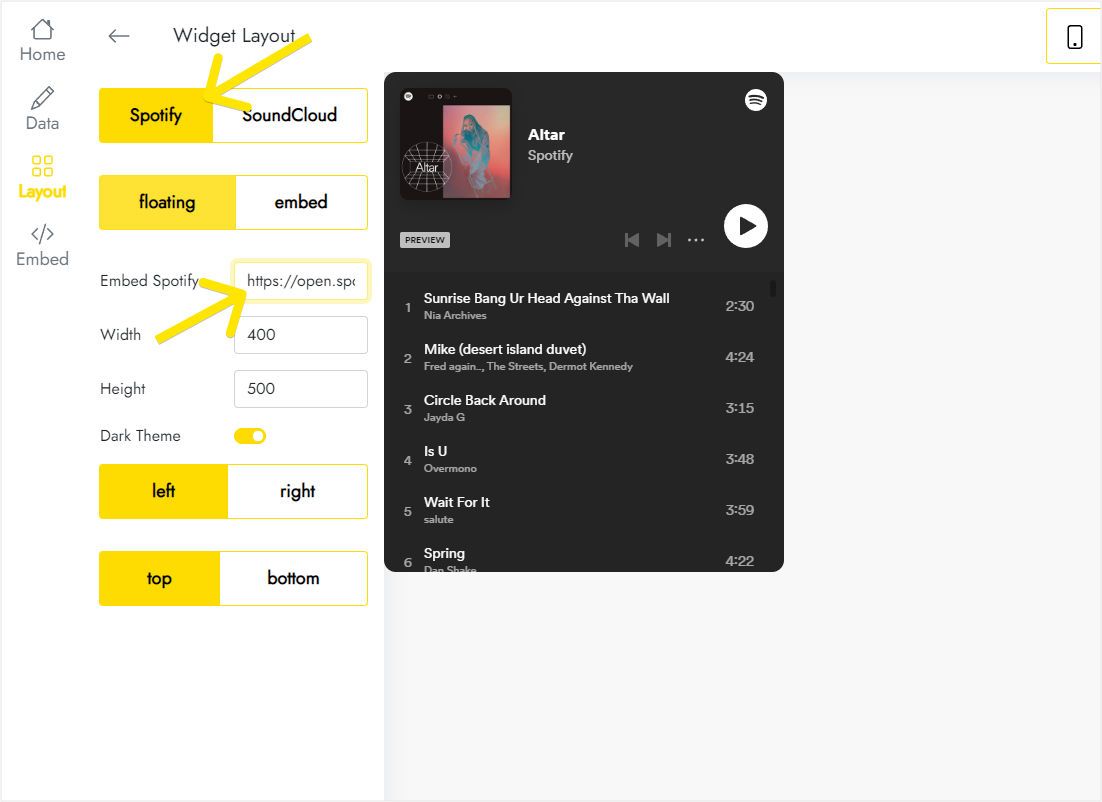
Layout first asks for the service (Spotify or SoundCloud); keep floating, drop in the URL, then anchor the player left/right and top/bottom.
-
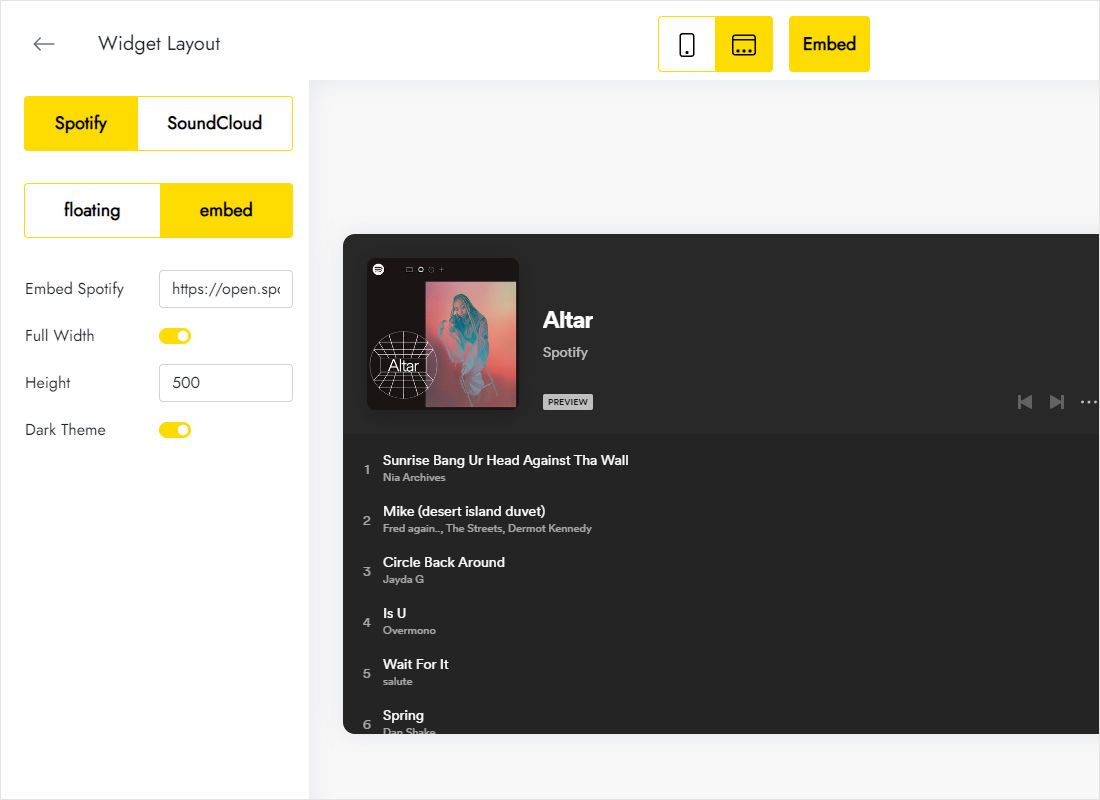
For a player inside the page, the embed mode exposes Full Width, Height and Dark Theme.
-
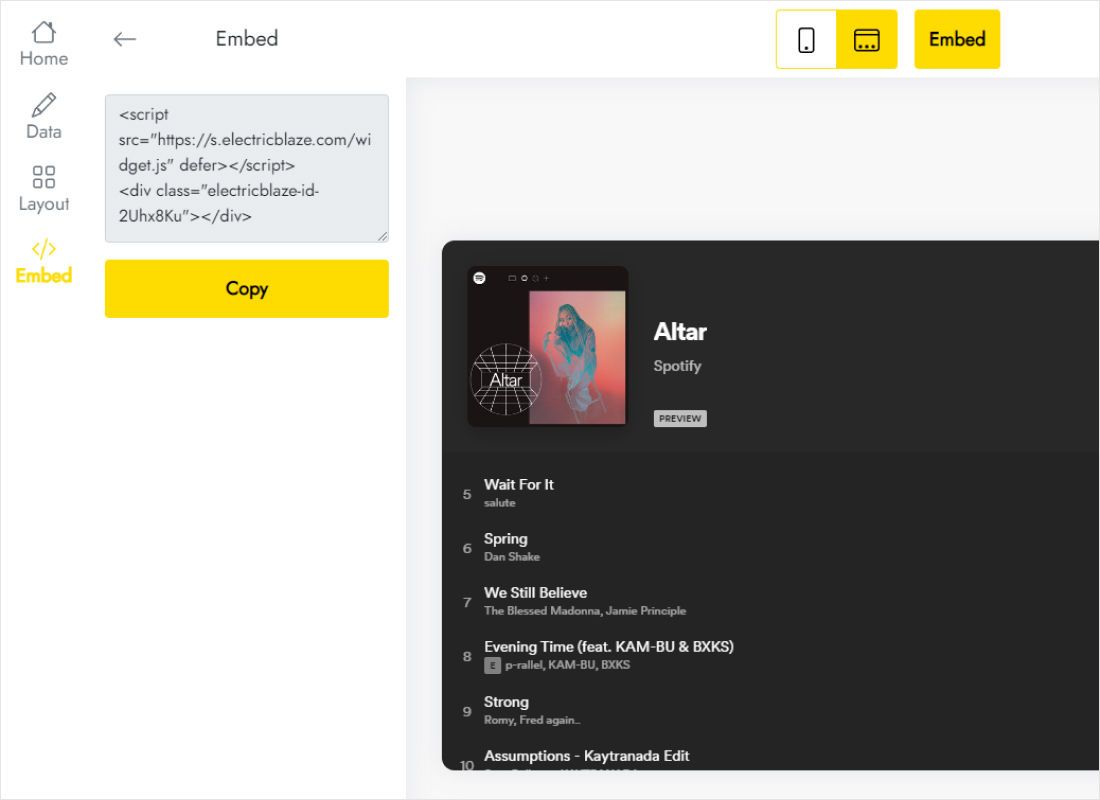
Copy the markup displayed by Add to website.
Step 2: Paste the player into Hostinger
Follow the branch that matches the mode you picked.
- Embed mode. On the chosen page, pull Embed code from the Add elements panel, hit Enter code, insert the lines and confirm.
- Give that element at least the pixel height typed in the widget; otherwise songs at the bottom of the list vanish.
- Floating mode. Through More (⋯) reach Integrations; the Custom code box takes the lines, underneath whatever codes are already listed.
- Hostinger relocates script tags from that box to the closing part of each page on its own, so nothing else needs configuring.
- Press Update website and browse two or three pages of the live site to check the player.
Neither mode runs in the editing canvas. Check the published address after every change.
Sound, space and small screens
Why nothing plays on page load
Chrome, Edge, Safari and Firefox keep media muted or paused until a person has clicked or tapped on the site. A player that waits for the play button is therefore expected behaviour, and it spares visitors a sudden burst of music in an open office.
Hostinger audio player placement
- On the homepage, an embed below the hero with a moderate height shows the cover and a few tracks.
- Small screens get crowded: if a consent notice or messenger bubble shares the corner, anchor the player at the top or on the other side.
- Install the floating version just once; duplicates overlap each other.
To change the playlist later, edit the link in ElectricBlaze. The code on Hostinger does not change.
Music on a Hostinger site: FAQ
Does music continue between pages?
No. Navigating reloads the page and the audio with it; the corner player reappears on the next page, paused.
Is there a way to play audio files I host myself?
No. Streaming comes from Spotify or SoundCloud, and the tracks remain on those platforms.
The floating player shows only on one page. Why?
Its code sits in a page element. Remove it there and paste into the Integrations code box instead.
Which plan do I need?
A single player runs fine on Free. The $5-a-month Start tier (annual billing) takes away branding and view limits.
Further reading for Hostinger
Hostinger embedding basics, the Music Player feature overview and the other builder walkthroughs:
Set up your music player
Choose a playlist, choose a mode, and give your Hostinger site a soundtrack.
Create a widget