
How to Add a Spotify Playlist to Wix
Background music, a band discography or a podcast list: the ElectricBlaze Music Player lets you add Spotify playlist to Wix pages as a block in your layout or as a bar that stays on screen while visitors scroll.
Pick the player mode first
Two display modes exist, and each needs its own Wix tool:
- Embed mode draws the player inside the page flow, like any other block. It fits into an Embed HTML element, which every Wix plan, the free one included, can use.
- Floating mode docks a slim player to one side of the viewport. To escape the box it needs Settings → Custom Code, and Wix offers that only to Premium sites with a connected domain.
Spotify is not the only source. SoundCloud tracks and sets work the same way, which is handy for a Wix audio player built around your own uploads.
Step 1: Prepare the playlist widget
Short route below; the player documentation with demos covers each option.
-
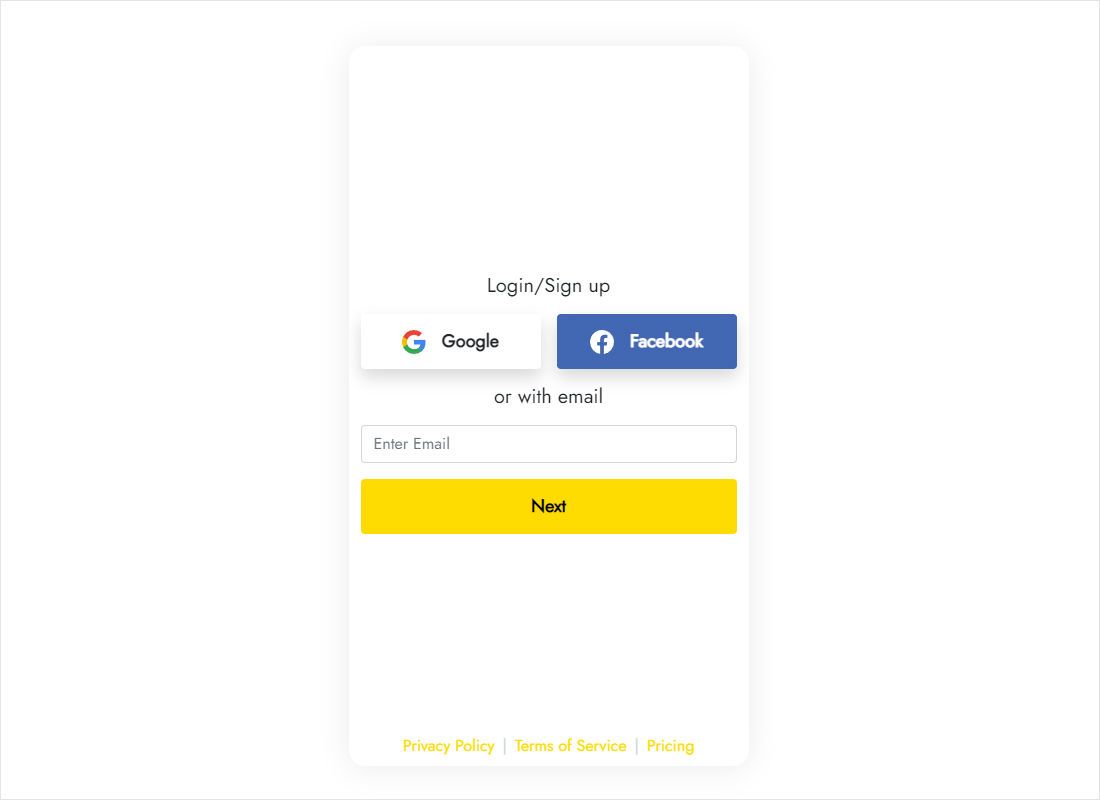
Reach the dashboard through a.electricblaze.com, creating a free login if needed.
-
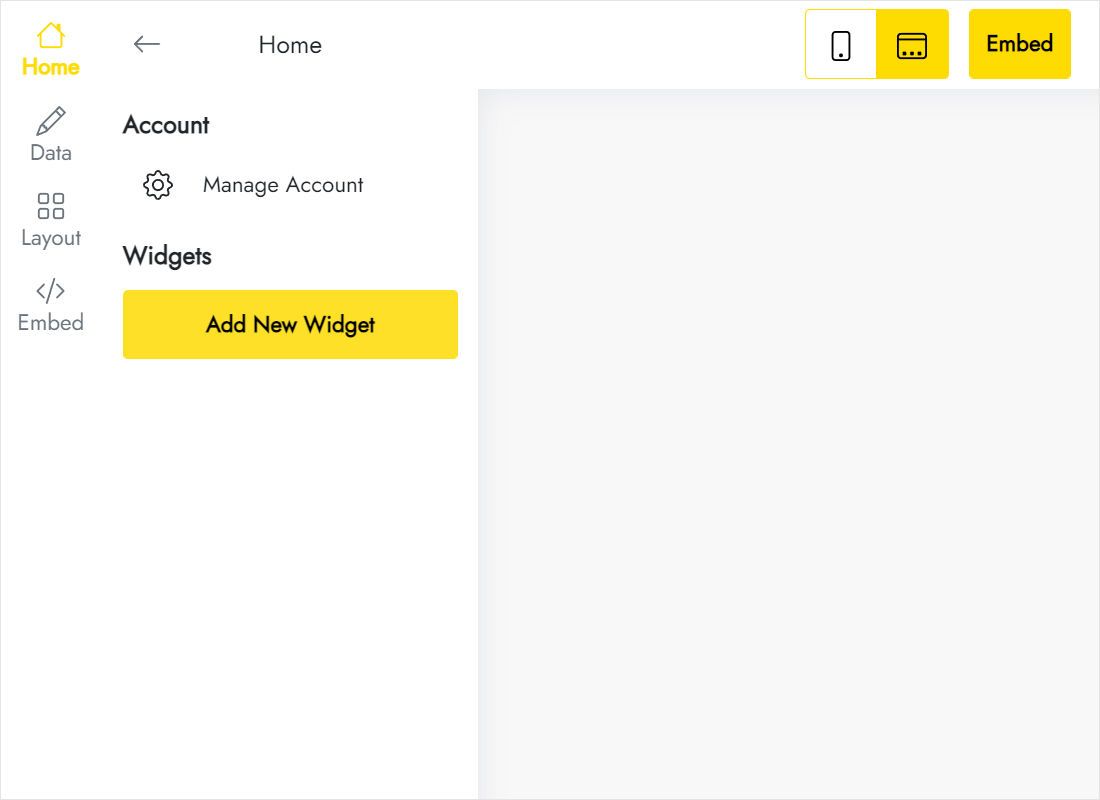
Music Player is one of the types offered by Create New Widget.
-
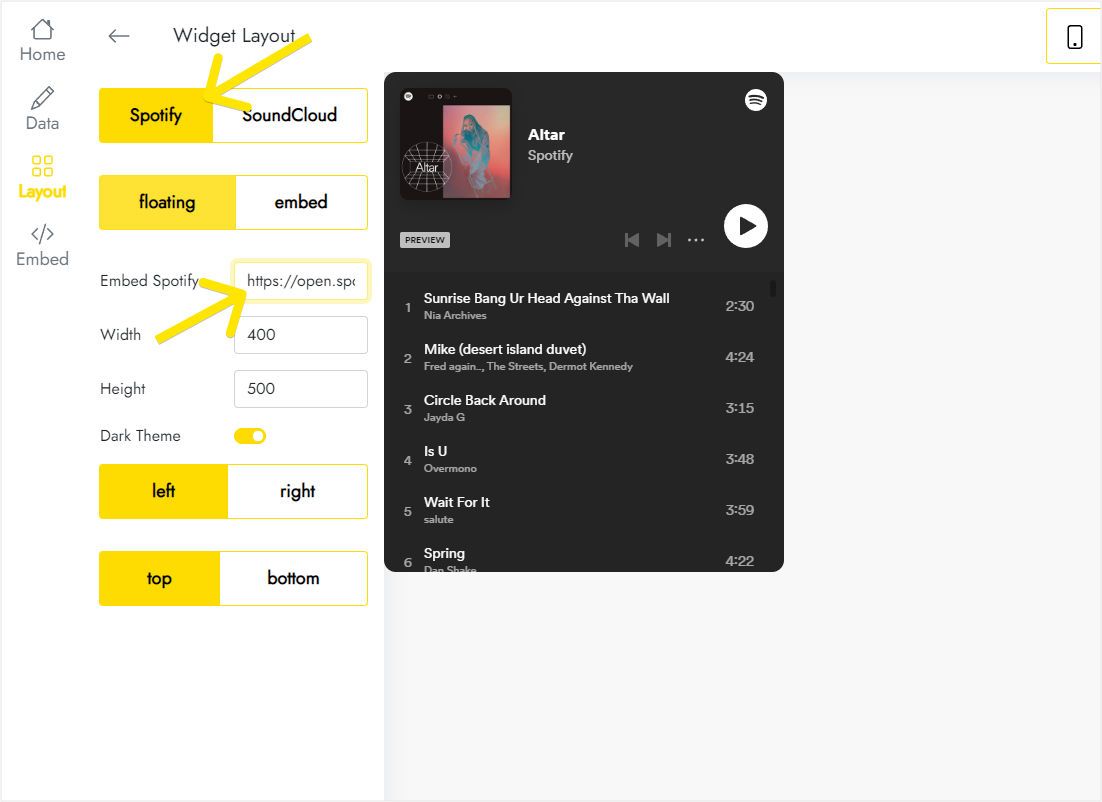
Head to Layout, choose Spotify or SoundCloud and paste the playlist link; in floating mode also set the size and which corner the player docks to.
-
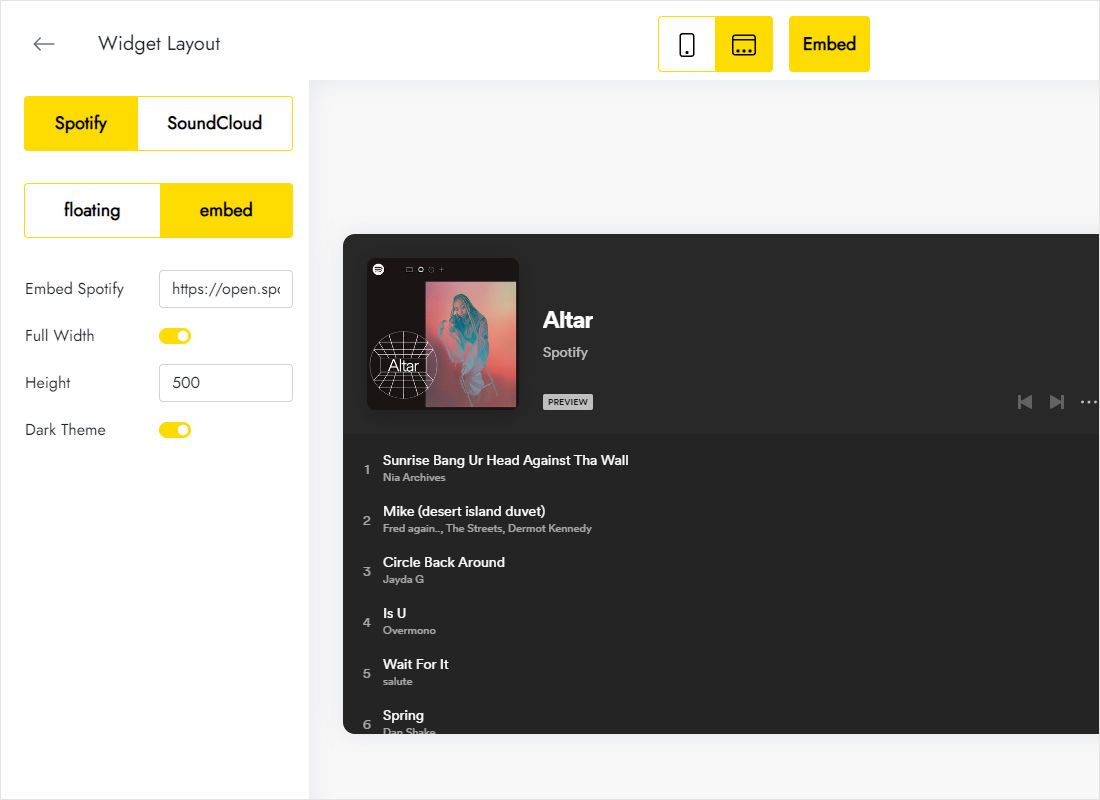
For a player inside an Embed HTML box, select embed, keep Full Width switched on and set the height to match the box.
-
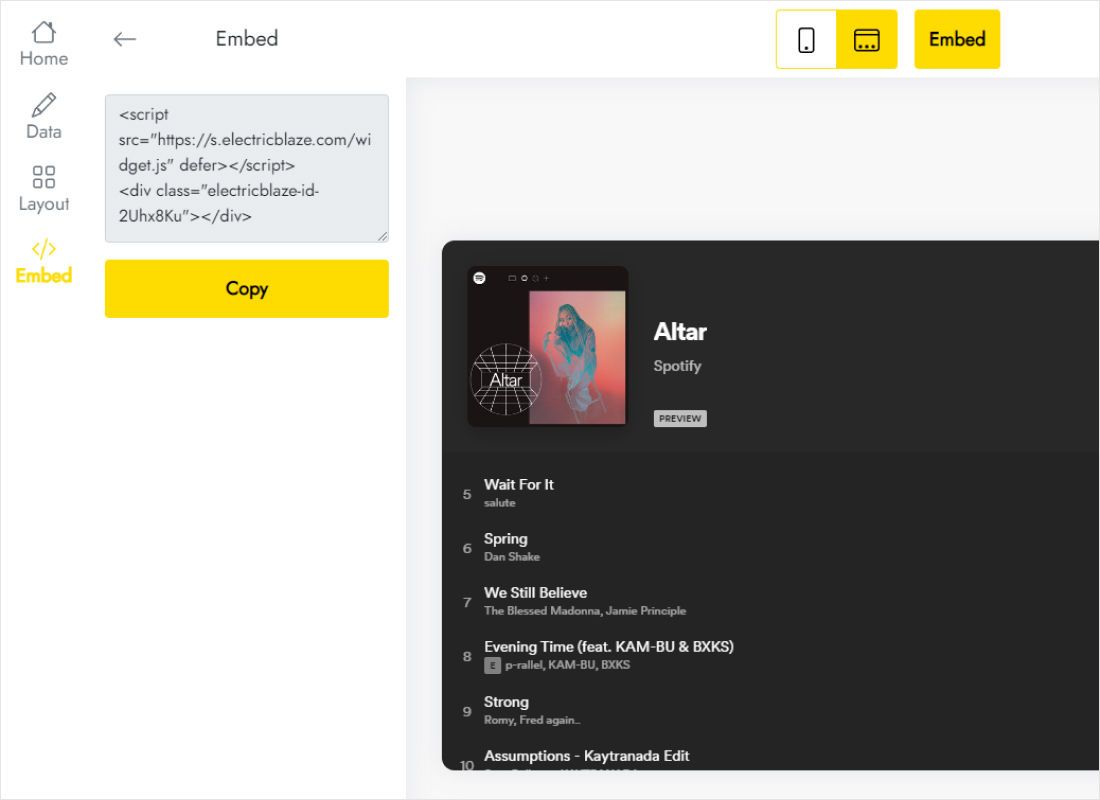
When it sounds right, copy the snippet from Add to website.
Step 2: How to embed Spotify playlist in Wix
Follow the first three points for embed mode, or the last two for a floating player.
- Embed mode. In the Wix Editor click Add Elements → Embed Code → Embed HTML on the page where the playlist should live.
- Via Enter Code insert the snippet; Apply saves it.
- Resize the element to the player height you chose in ElectricBlaze plus a little margin, check the mobile view and publish.
- Floating mode. In the site dashboard open Settings → Custom Code (under Development & integrations) and click Add Custom Code.
- Insert the snippet, label it “Music player”, target All pages, set the placement to Body – end and confirm.
A floating player pasted into Embed HTML stays locked inside that rectangle, because Wix renders the element as an iframe. Use Custom Code for that mode.
Autoplay, previews and placement on Wix
Silence until the first click
Audible playback is held back by browsers until a visitor clicks or taps, so a Wix audio player autoplay setting cannot force playback on arrival. Treat the player as an invitation: place it near content that explains what the visitor will hear, so pressing play feels like a choice.
Full tracks or previews
Spotify decides what a listener hears. Visitors signed in to Spotify in the same browser can usually play complete tracks; others may only get short previews.
Where it looks best
- A single Wix Spotify playlist next to an event or album description works well in embed mode.
- For a site-wide soundtrack use floating mode at the bottom edge, and on phones make sure it does not cover the Wix Quick Action Bar.
- Replace the playlist any time in ElectricBlaze; nothing in Wix has to be edited.
Music player on Wix: FAQ
How to add Spotify playlist to Wix website pages on a free plan?
Use embed mode and an Embed HTML element. Only the floating mode depends on Custom Code, which Wix reserves for Premium sites with a connected domain.
Spotify music player Wix app or a widget: which one?
An app from the Wix market ties the player to Wix. The ElectricBlaze snippet also works on your other sites and builders, and it supports SoundCloud as well.
Where should a floating player sit on phones?
Choose the position (left, right, top or bottom) in the Layout tab, then open the live site on a phone and confirm the player does not overlap buttons Wix adds on mobile.
Will visitors hear music when they open the page?
Not automatically. Modern browsers wait for a click or tap before any sound plays.
Related Wix instructions
Put your playlist on Wix
Pick a playlist, decide how it is displayed and publish. The free tier is enough to try.
Create a widget