
How to Add Music Player to Jimdo
Bands, podcasters and venues often want to add music player to Jimdo pages so visitors can listen while they read. This guide explains both music player modes and the part of a Creator site that suits each one.
What to prepare
- A playlist, album, track or show on Spotify or SoundCloud, with its embed code copied.
- A Jimdo Creator site. The Website Builder editor offers no place for third-party code.
- An ElectricBlaze account; the Free plan is enough for testing it alongside the rest of the widget range.
Inside Creator, music comes from partner add-ons, and Jimdo’s help centre suggests pasting an outside provider’s code into the Widget/HTML element. That element is exactly where this player goes.
Step 1: Set up the player
The mode you pick matters more than any other setting. The live demo of each player mode shows the difference.
-
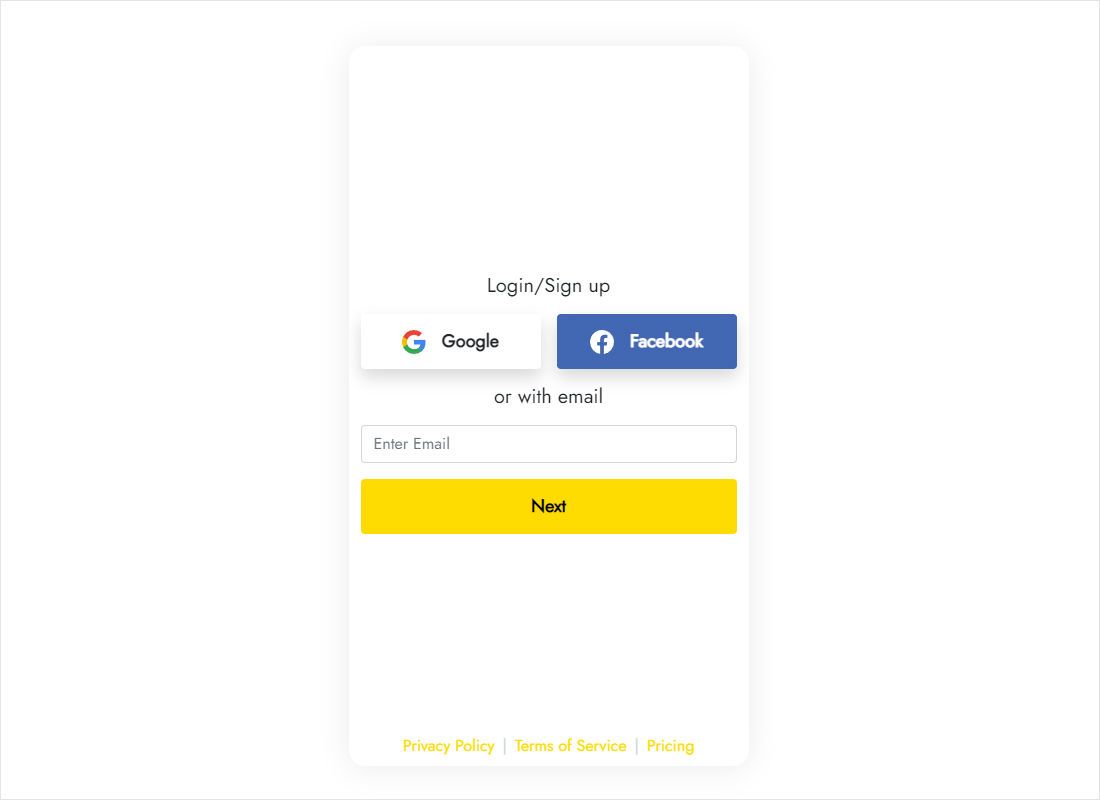
Enter the dashboard at a.electricblaze.com, registering first if you are new.
-
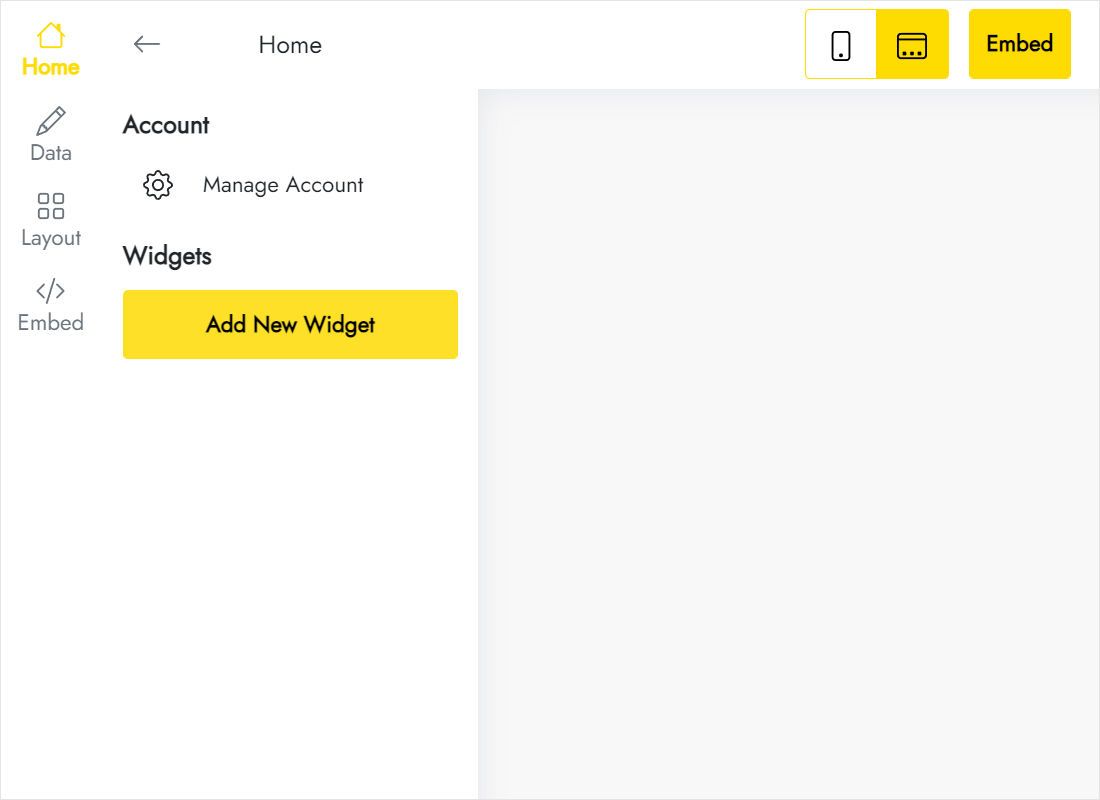
From the widget types, pick Music Player to start a new one.
-
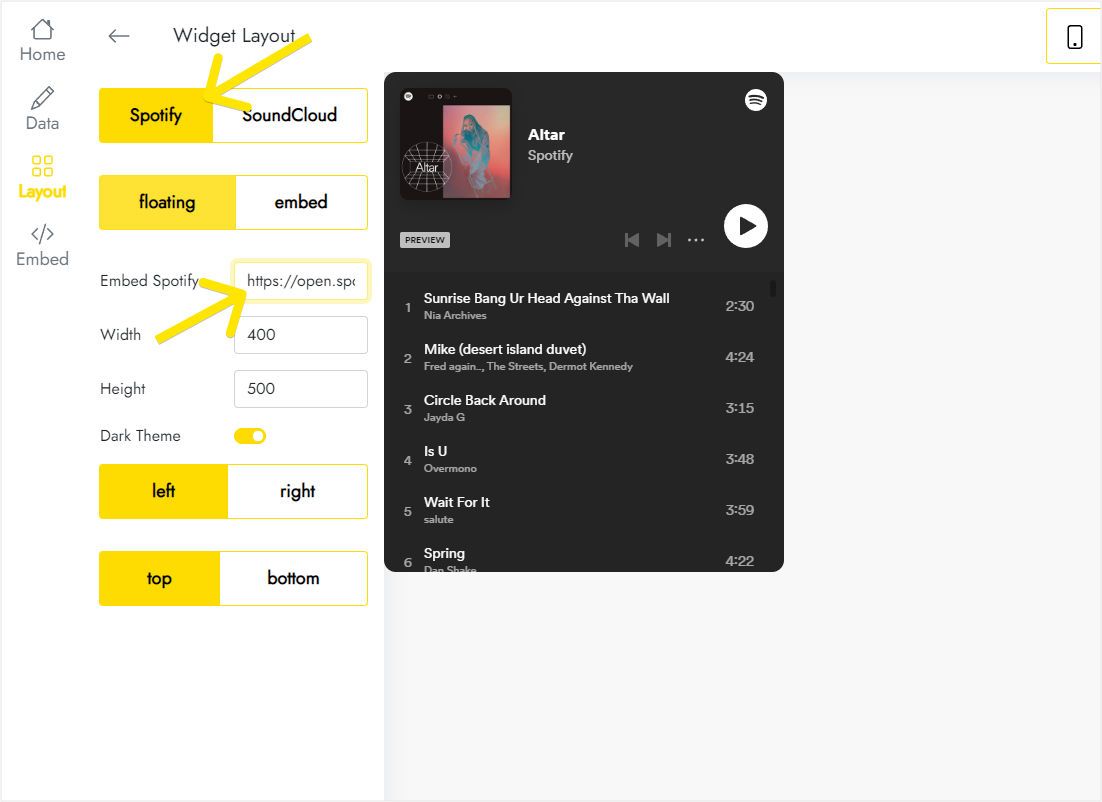
In Layout, choose the streaming service, paste the playlist link and, for a bar that follows visitors, keep floating with a corner of your choice.
-
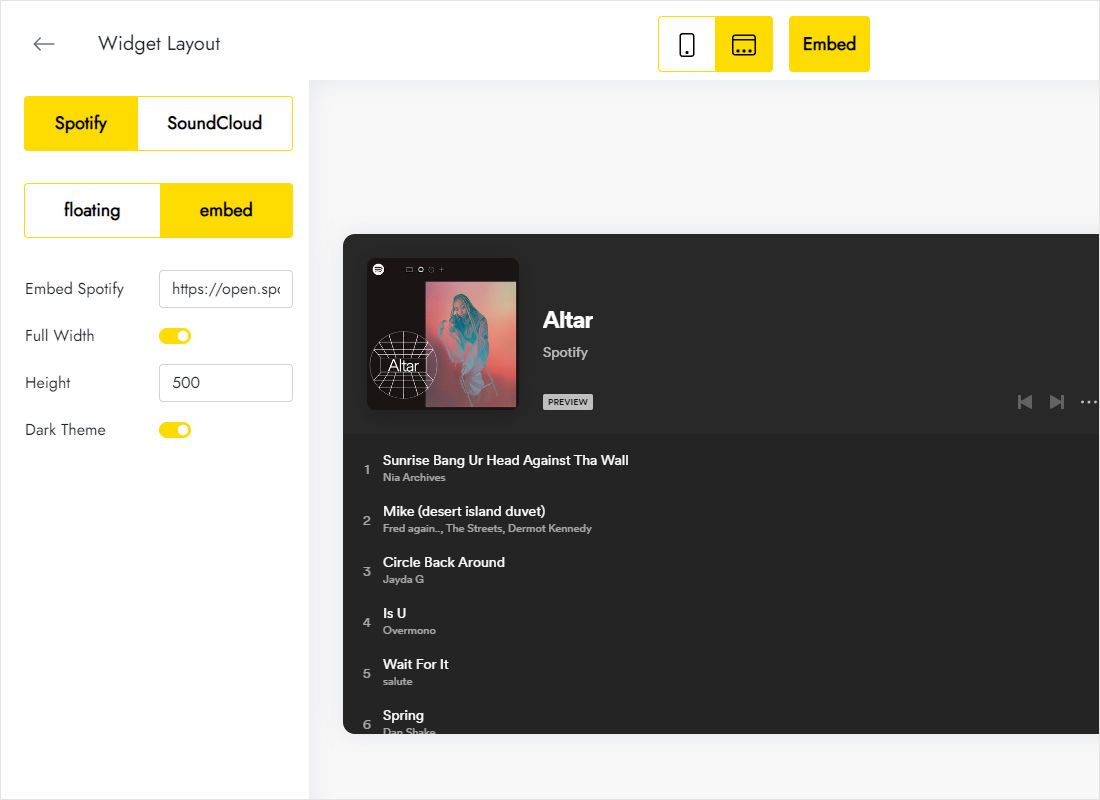
If the music belongs to one content area instead, click embed, keep Full Width and type a height for the element.
-
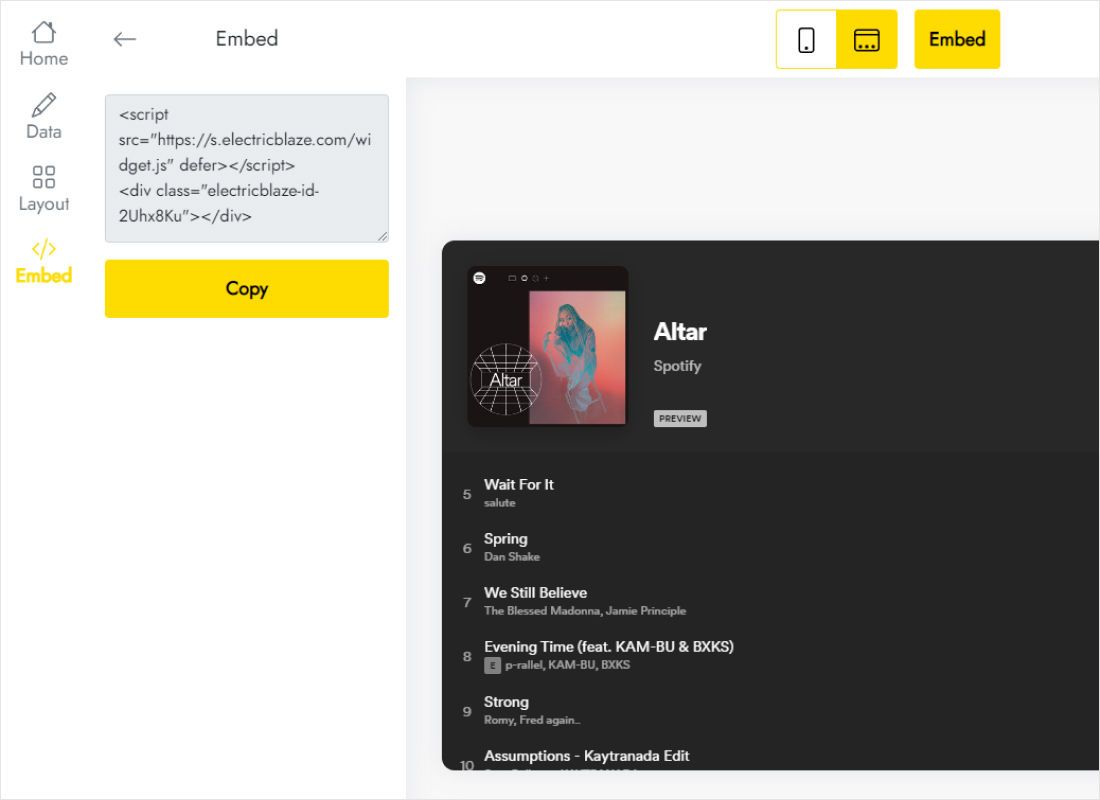
Once happy, Add to website shows the finished snippet for copying.
Step 2: Put the player on your Jimdo site
Where you paste depends on the mode you selected.
- Embed mode: open the page, click Add Element at the spot for the player and choose Widget/HTML.
- Floating mode: click Add Element inside the sidebar instead, so the bar loads on every page of the site.
- Paste the code into the box that opens and click Save.
- Exit edit mode and press play to test the sound.
Keep a single floating player per site. A second copy on one page would stack two bars on top of each other.
Embedded or floating on a Creator site
When to embed
An embedded player is a visible block in the page flow, right next to the words that introduce it: a release announcement, an episode summary or a list of DJ sets. Set the height in the widget so a playlist shows several tracks without leaving a tall empty area.
When to float
A floating bar stays in a corner while people browse. It suits artist sites and shops that treat music as part of their identity. On phones, pick a position that keeps the template’s menu button and any cookie notice clear.
Autoplay rules
Chrome, Safari and Firefox keep sound from starting on its own until someone clicks or taps somewhere on the site. Expect listeners to press play themselves rather than hearing music as the page appears.
Jimdo audio: FAQ
Does the music continue when visitors open another page?
Creator loads every page from scratch, so playback stops when someone navigates. The floating bar reappears on the next page, ready to be started again.
Why is there silence when the page opens?
Browsers mute automatic playback. A visitor has to press play once.
Can I swap a Spotify playlist for SoundCloud later?
Yes. Change the source on the Layout tab; the code on your Jimdo page stays exactly the same.
Will this player work on the Jimdo Website Builder?
Only Creator sites can hold the code. The Website Builder does not accept outside HTML.
Keep exploring
Other Jimdo instructions and the feature overview of the player:
Create your music player
Bring your playlist link, settle on inline or floating, and let Creator do the rest.
Create a widget