
How to Add a Jimdo Instagram Feed
A Jimdo Instagram feed keeps a page current without uploading photos twice. This walkthrough covers the account type Instagram requires, the ElectricBlaze settings that suit Creator templates and the exact element that takes the code.
Before you connect Instagram
- An Instagram profile set to Business or Creator. A personal profile can be switched in the Instagram app settings.
- A website built with Jimdo Creator. The Jimdo Website Builder does not accept embedded code.
- An ElectricBlaze login, free to create.
Creator’s element menu also lists a partner Instagram add-on. The ElectricBlaze gallery is worth a look if you run more than one site, since one widget can appear on all of them and is managed from a single dashboard alongside YouTube, TikTok and other feeds.
Step 1: Build the photo gallery
The Instagram widget settings reference lists every option. For a Creator site these five steps are enough:
-
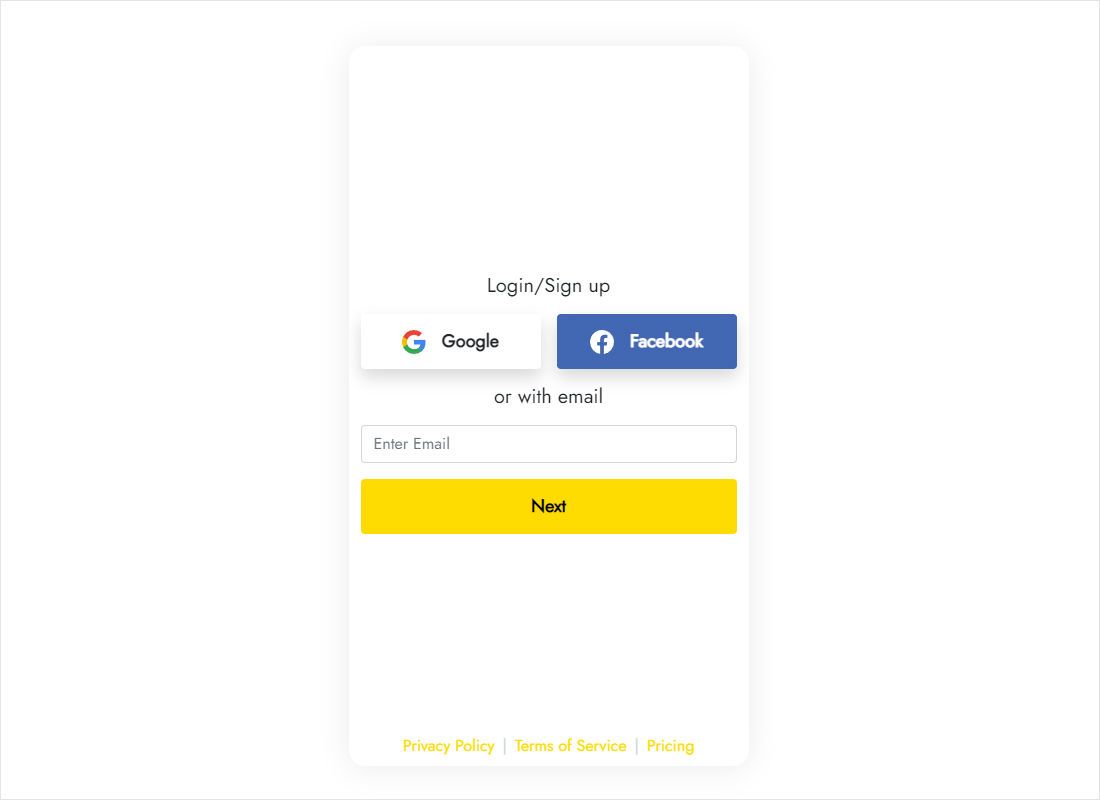
Visit a.electricblaze.com. Registration asks for no card, and existing users simply sign back in.
-
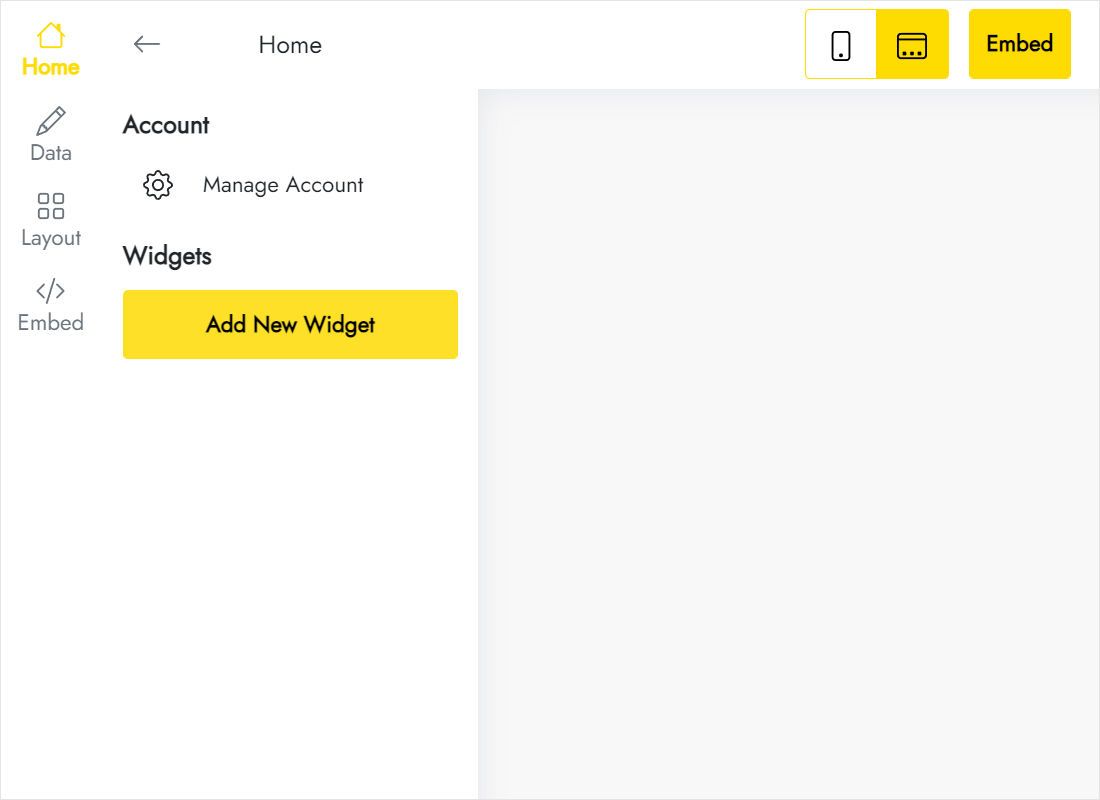
Begin a fresh widget from the dashboard and tick the Instagram type.
-
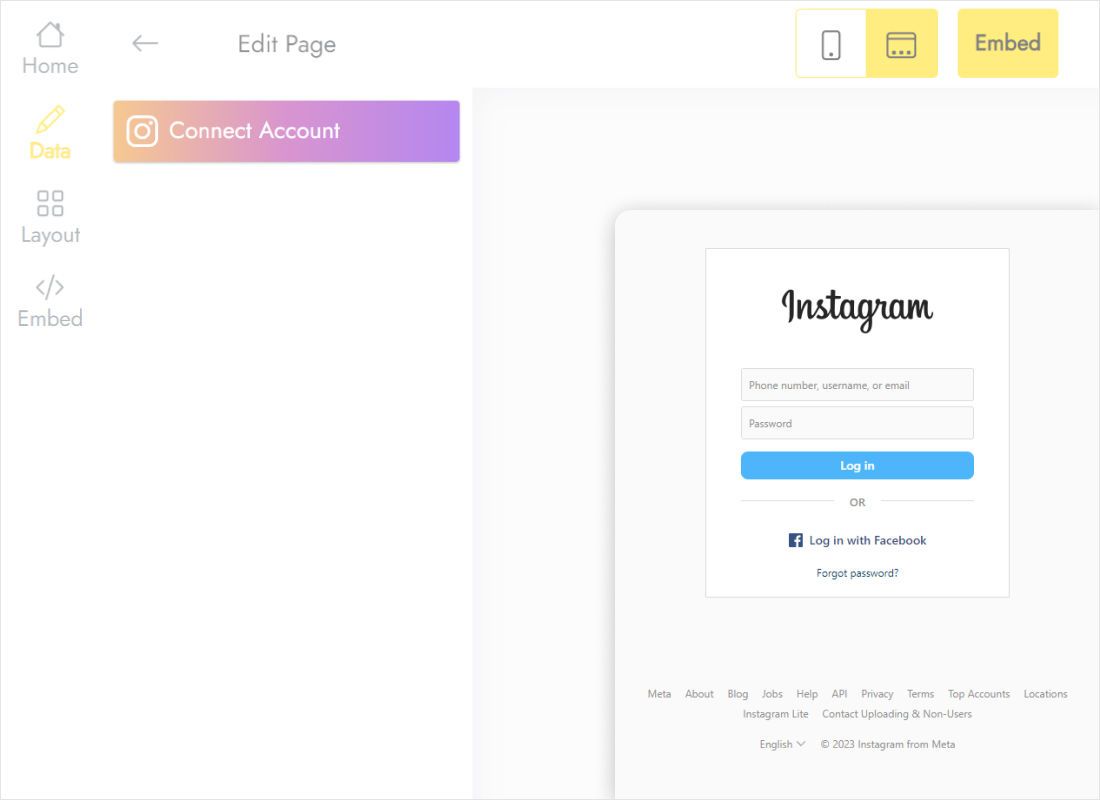
On the Data screen, Connect Account launches an Instagram approval window; confirm there.
-
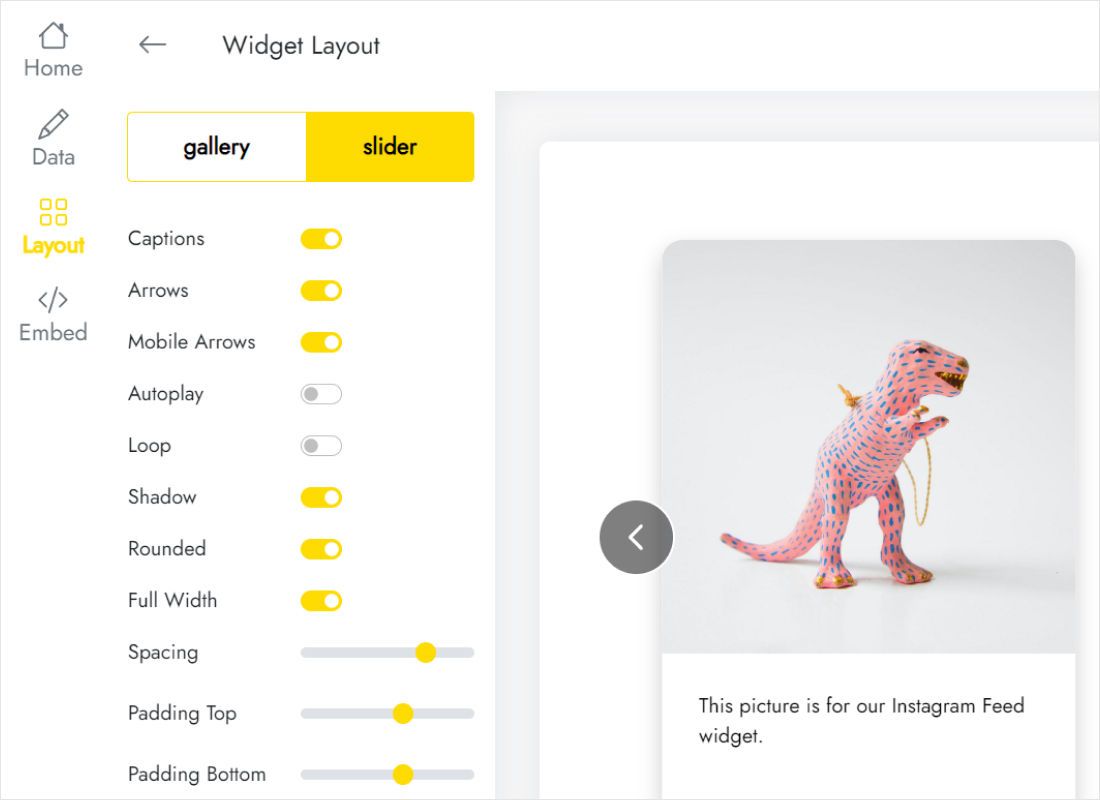
The Layout screen switches gallery and slider. Three or four columns tend to suit a typical Creator page width.
-
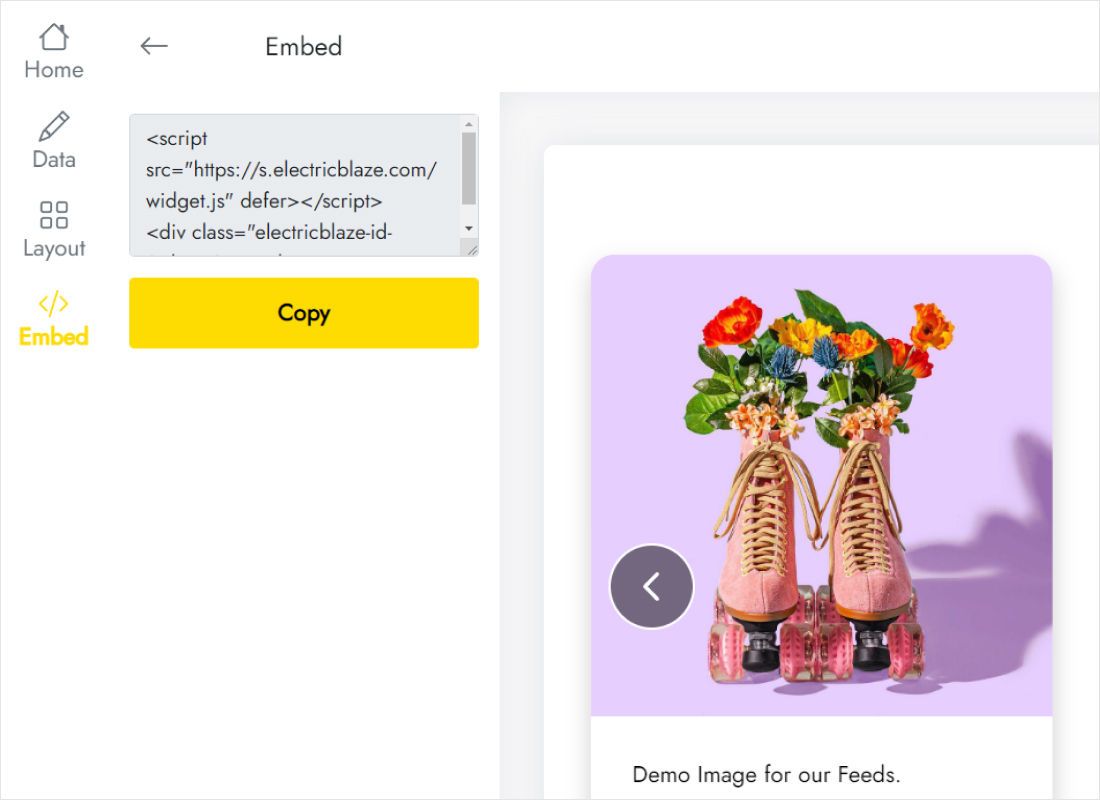
Finally, Add to website at the top reveals two lines of code to copy.
Step 2: Place the feed on your Creator page
Return to the browser tab where your site is open in edit mode.
- Scroll to where the photos belong, for example beneath your About text, and click Add Element.
- Pick Widget/HTML from the More Elements group.
- Drop the two copied lines into the code editor that unfolds beneath it.
- Click Save, then leave edit mode to watch the posts load.
Want the gallery everywhere? Put the element in the sidebar instead, because Creator repeats sidebar content on each page.
Grid, slider and phones on Jimdo
In most Creator templates the content column is narrower than the browser window, so a grid with many columns ends up as tiny thumbnails. Begin with three columns and two rows, check the live page, and only then add more.
- Sidebar placement. A one-row slider suits a side column far better than a grid does.
- Captions. Hide them for a clean photo wall; show them when posts mention prices, menus or event dates.
- Phones. Open the page on a real phone. The gallery adapts to the smaller screen, so confirm that rows and captions still look tidy.
- Spacing and background. Match the gap and background colour to your template so the feed does not look boxed in.
Whatever you post later shows up once the widget syncs, which happens daily for Free accounts and hourly for Start subscribers. Jimdo itself needs no further saving.
Instagram on Jimdo: answers
Why does my Instagram feed Jimdo page show only a code icon?
You are still in edit mode, where Creator displays a placeholder. Leave the editor or view the site in a separate browser tab.
Can I link a personal Instagram profile?
No. Instagram only shares posts with outside apps from Business or Creator accounts.
Is a Jimdo Instagram feed possible on the Website Builder?
Not with ElectricBlaze, because that editor has no HTML element. The gallery needs a Jimdo Creator site.
Does the gallery use up my plan limits?
Every page load displaying the gallery counts as a view. The free tier includes a thousand each month, and Start ($5 monthly, paid annually) lifts that ceiling.
More Creator guides
Other widgets for Jimdo, the general instructions and the full Instagram widget description:
Make your Instagram gallery
Free plan, no card needed. Connect the profile and paste the code into Jimdo Creator.
Create a widget