
How to Show a GoDaddy Instagram Feed
Your Instagram grid already shows products, finished jobs and happy customers. This tutorial explains how to add Instagram feed to GoDaddy website pages through ElectricBlaze, and how to size the code frame so every photo row survives on laptops and phones alike.
What to have ready
- An Instagram profile converted to a Business or Creator account inside the Instagram app.
- Editing rights for the Websites + Marketing site where the photos should go.
- A dashboard login at ElectricBlaze; Free and Start both work.
Custom markup on this builder runs in a frame with its own height, so the most reliable GoDaddy Instagram feed is one planned around that box: a fixed number of photo rows, or a slider.
Step 1: Prepare the photo gallery
All display options are pictured in the Instagram grid and slider showcase. Here is the sequence:
-
Load a.electricblaze.com; returning users sign in, newcomers register in a few clicks.
-
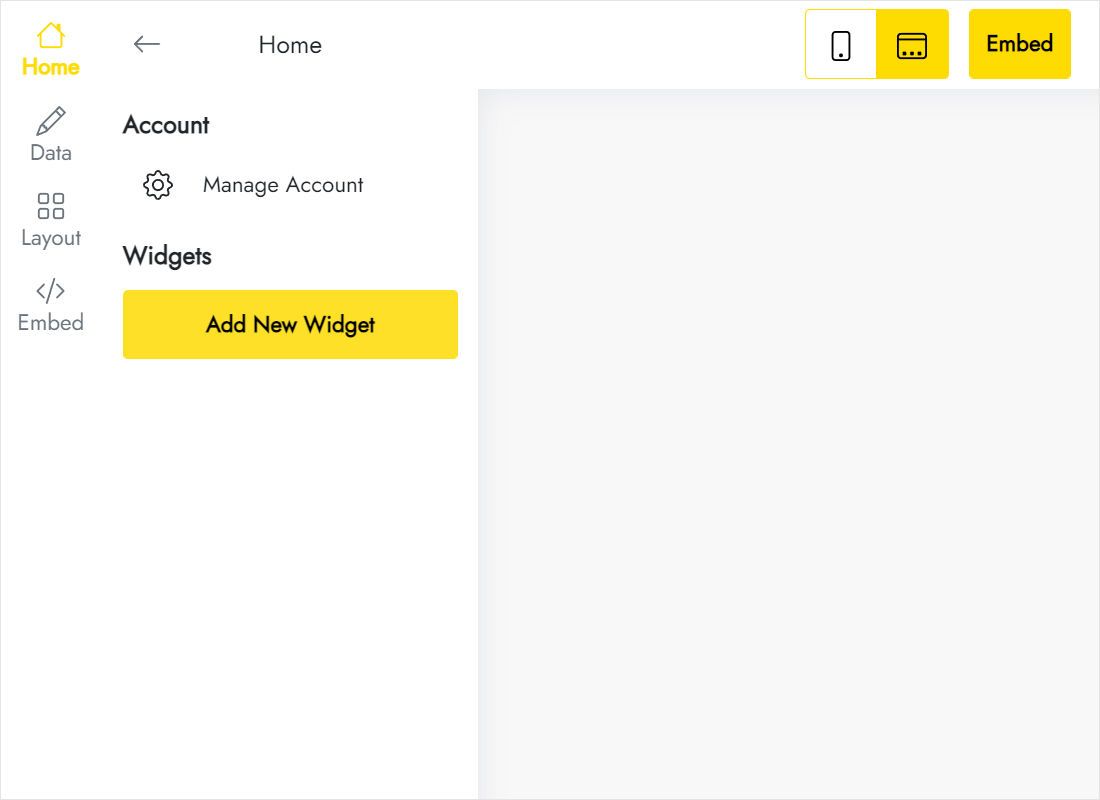
From the dashboard, start a new widget and select the Instagram option.
-
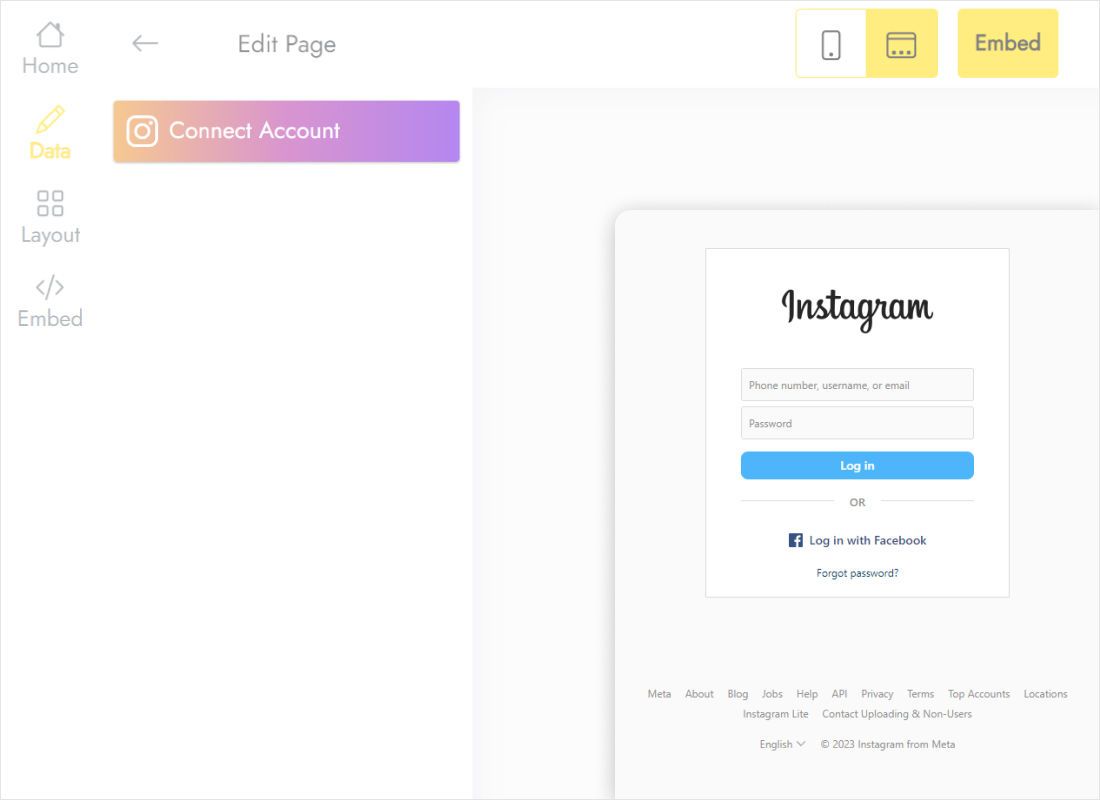
Under Data, use Connect Account, then confirm permissions in the window Meta shows.
-
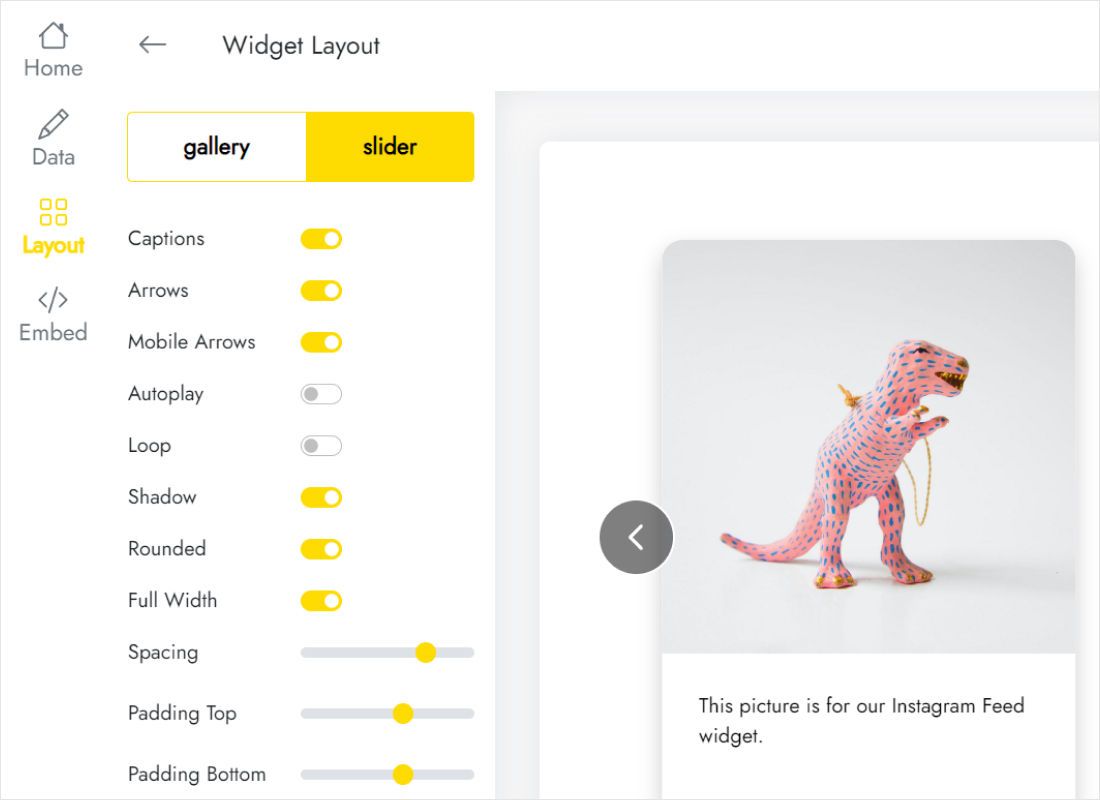
Under Layout, prefer a slider, or a gallery limited to a set count of rows, which keeps the frame height predictable.
-
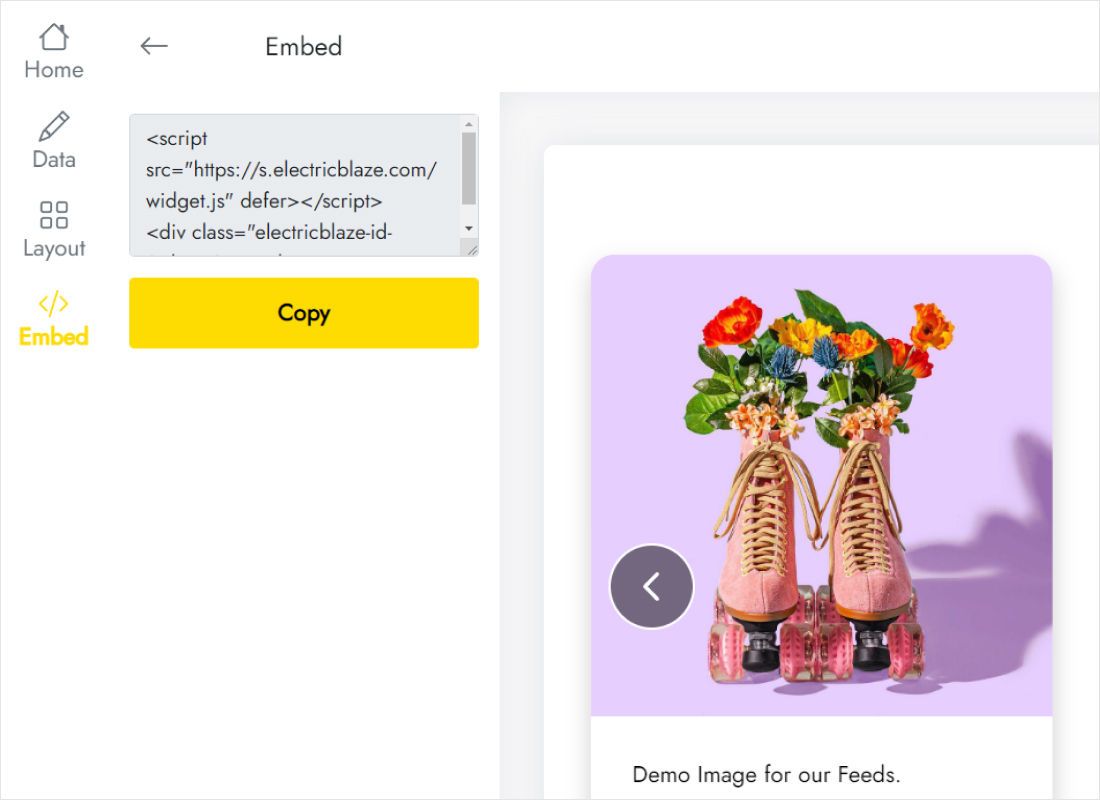
Open Add to website at the top and copy both lines of the snippet.
Step 2: Add the HTML section in GoDaddy
Now switch to the site editor and open the page picked for the gallery.
- Move the pointer to the boundary of two existing blocks and choose Add Section.
- Type HTML in the search bar; the matching block appears under Files & Web.
- Drop the Instagram snippet into Custom Code. The optional Title field above it can hold a line such as “See us on Instagram”.
- Open Preview. Should the bottom photo row vanish, put a pixel number into Forced Height.
- Hit Publish when both the laptop and the mobile preview show the complete grid.
The editor keeps a draft as you type; nothing reaches visitors until Publish is clicked.
Fitting Instagram posts into a code frame
Content inside the HTML block may fail to stretch its frame when a screen gets narrower. Thumbnails that sit neatly in two rows on a laptop can reflow into more rows on a phone, so check the published page on an actual handset instead of trusting the desktop preview.
- Slider first. One horizontal strip keeps a compact, steady footprint that suits a fixed frame.
- Grids. Stay at one or two rows and leave Forced Height blank initially; type a number only after spotting clipped photos.
- Captions. Lengthy post text changes the block height from image to image, so hide captions where space is tight.
- Background. Pick the widget background that matches the neighbouring section to avoid a visible seam.
Once live, your GoDaddy Instagram feed looks after itself: posts sync daily on the Free tier and hourly on Start.
Instagram on GoDaddy: FAQ
The last photo row disappears. What happened?
The frame is shorter than the gallery inside it. Raise Forced Height, or trim a row on the Layout tab.
Will the photos automatically show on all pages of my site?
No. Websites + Marketing offers no area for code that loads everywhere, so every page needing the gallery gets its own HTML block.
Is ElectricBlaze free for a small shop?
The Free tier covers five widgets of any type and a thousand views each month. Start runs $5 monthly, paid annually, with unlimited views and no branding.
After posting on Instagram, must I republish?
No. The pasted snippet never changes, and fresh posts arrive through it automatically.
Related GoDaddy guides
Neighbouring tutorials for this builder, plus the full description of the photo widget:
Create a feed for GoDaddy
Connect Instagram, settle on a slider or a grid, then drop the snippet into an HTML block.
Create a widget